> ## Documentation Index
> Fetch the complete documentation index at: https://docs.agentmark.co/llms.txt
> Use this file to discover all available pages before exploring further.
# Human annotation
> Score traces with human reviewers, individually or in structured batch queues
**Cloud feature.** Annotations are available in the [AgentMark Dashboard](https://app.agentmark.co).
Human annotation adds manual scores, labels, and feedback to your traces. Use it to evaluate subjective quality, flag edge cases, curate training datasets, and calibrate your automated evals.
AgentMark supports two annotation workflows:
* **Inline annotation**: score a single trace directly from the trace drawer
* **Annotation queues**: batch traces into structured review queues with assignment, progress tracking, and multi-reviewer support
The animation shows a reviewer moving through a queue: list view → queue detail with assigned items → side-by-side review panel (trace on the left, score controls on the right) → next item.
## When to use human annotation
| Use case | Example | Workflow |
| ----------------------------- | ------------------------------------------------------------- | --------------------------------------------------------------------- |
| **Quality audits** | Review a sample of production traces for correctness and tone | Create a queue, add traces, assign to domain experts |
| **Edge case triage** | Flag and investigate unexpected model behavior | Inline annotation from the trace drawer |
| **Dataset curation** | Build high-quality test datasets from real production data | Review in queue, save passing traces to a dataset |
| **Calibrate automated evals** | Align your LLM-as-judge scorers with human judgment | Score the same traces manually that your evals score, compare results |
| **Multi-reviewer consensus** | Get independent assessments from multiple team members | Set reviewers required > 1 on a queue |
## Score types
Score configs define what reviewers score on. They're declared as JSON in your `agentmark.json` under the top-level `scores` field. When creating a queue, you select which score configs to include.
The deployment pipeline must sync your score configs to AgentMark Cloud before you can create a queue. Push your changes to the connected branch so the pipeline picks up your `agentmark.json` scores. Once synced, score configs are always available in the Dashboard, with no worker dependency required. See [Project configuration](/configure/project-config) for the full `scores` schema and [Evaluations](/evaluate/writing-evals) for adding automated eval functions.
The same three score types power both automated evals and human annotation, so [Declare score configs](/evaluate/writing-evals#declare-score-configs) documents the JSON schema once. How each type appears to a reviewer:
* **Boolean (pass/fail)**: the reviewer clicks **Pass** or **Fail**, saved as `1` or `0`. Best for clear-cut criteria.
* **Numeric (scale)**: the reviewer enters a value within the config's `min`/`max` range. Best for graded assessments.
* **Categorical (labels)**: the reviewer picks one option from a dropdown; each option is a `{label, value}` pair, and `value` is the recorded score. Best for classification.
Every score type includes an optional **reason** field where the reviewer can explain their judgment.
## Inline annotation
Add a score to any trace directly from the trace drawer, with no queue required.
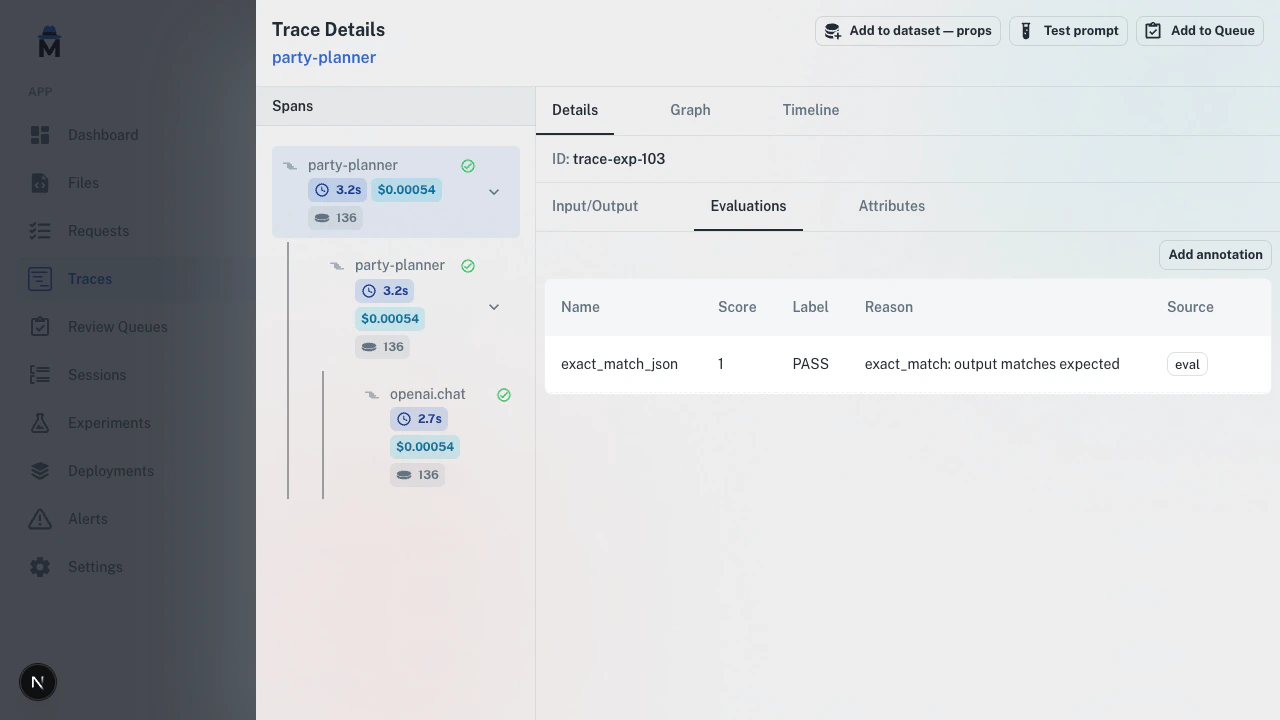 The Evaluations tab lists every score attached to the selected span: both automated eval results and human annotations. Each row shows the score name, label/value, and reason; annotations carry an **annotation** badge to distinguish them from automated scores.
Navigate to **Traces** and click on any trace to open the detail drawer.
Choose the span you want to annotate from the trace tree.
Click the **Evaluations** tab in the drawer.
Click **Add annotation**, fill in the name, label, score, and reason, then click **Save**.
Inline annotations appear alongside automated eval scores, distinguished by an "annotation" badge.
## Annotation queues
For batch review, use annotation queues. Queues let you organize items, assign reviewers, track progress, and require multiple independent reviews.
The Evaluations tab lists every score attached to the selected span: both automated eval results and human annotations. Each row shows the score name, label/value, and reason; annotations carry an **annotation** badge to distinguish them from automated scores.
Navigate to **Traces** and click on any trace to open the detail drawer.
Choose the span you want to annotate from the trace tree.
Click the **Evaluations** tab in the drawer.
Click **Add annotation**, fill in the name, label, score, and reason, then click **Save**.
Inline annotations appear alongside automated eval scores, distinguished by an "annotation" badge.
## Annotation queues
For batch review, use annotation queues. Queues let you organize items, assign reviewers, track progress, and require multiple independent reviews.
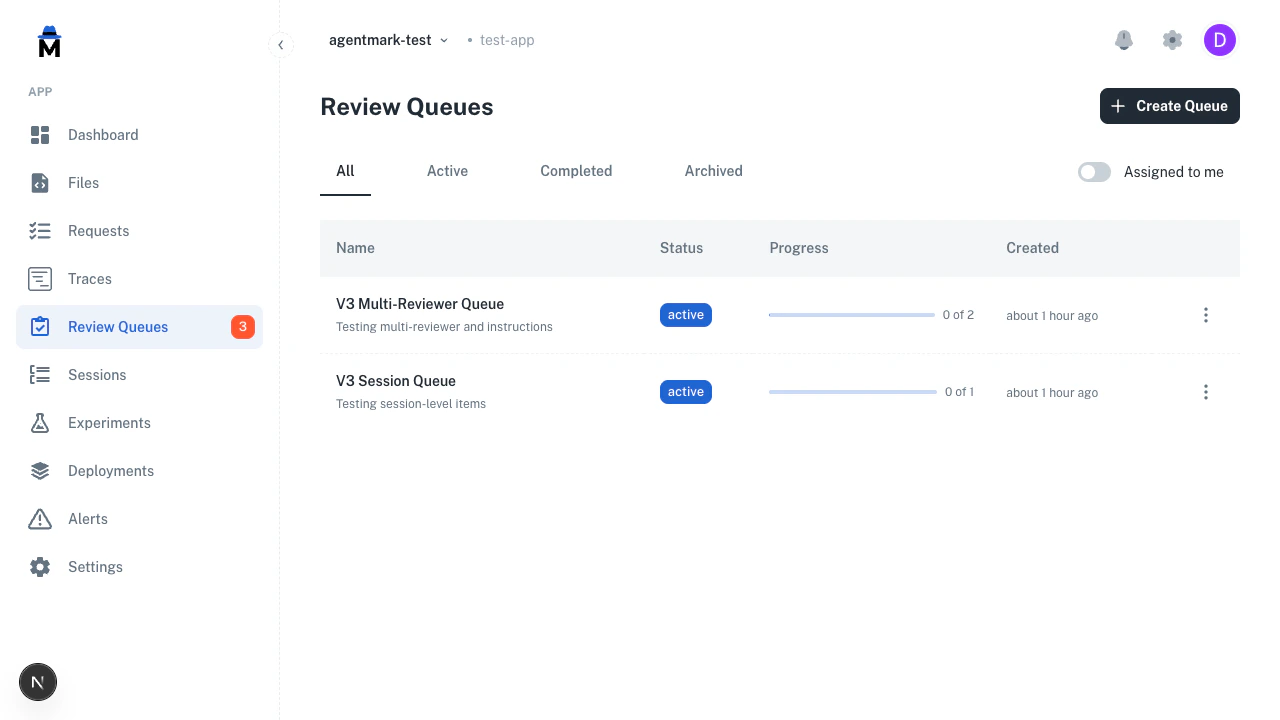 The Review Queues page lists every queue in the app with its name, status, progress, and creation time. Filter tabs narrow by status (All, Active, Completed, Archived), and an `Assigned to me` toggle restricts the list to queues with items assigned to you. A sidebar badge surfaces the total number of pending items across all active queues.
### Create a queue
Navigate to **Review Queues** in the sidebar and click **Create Queue**.
The Review Queues page lists every queue in the app with its name, status, progress, and creation time. Filter tabs narrow by status (All, Active, Completed, Archived), and an `Assigned to me` toggle restricts the list to queues with items assigned to you. A sidebar badge surfaces the total number of pending items across all active queues.
### Create a queue
Navigate to **Review Queues** in the sidebar and click **Create Queue**.
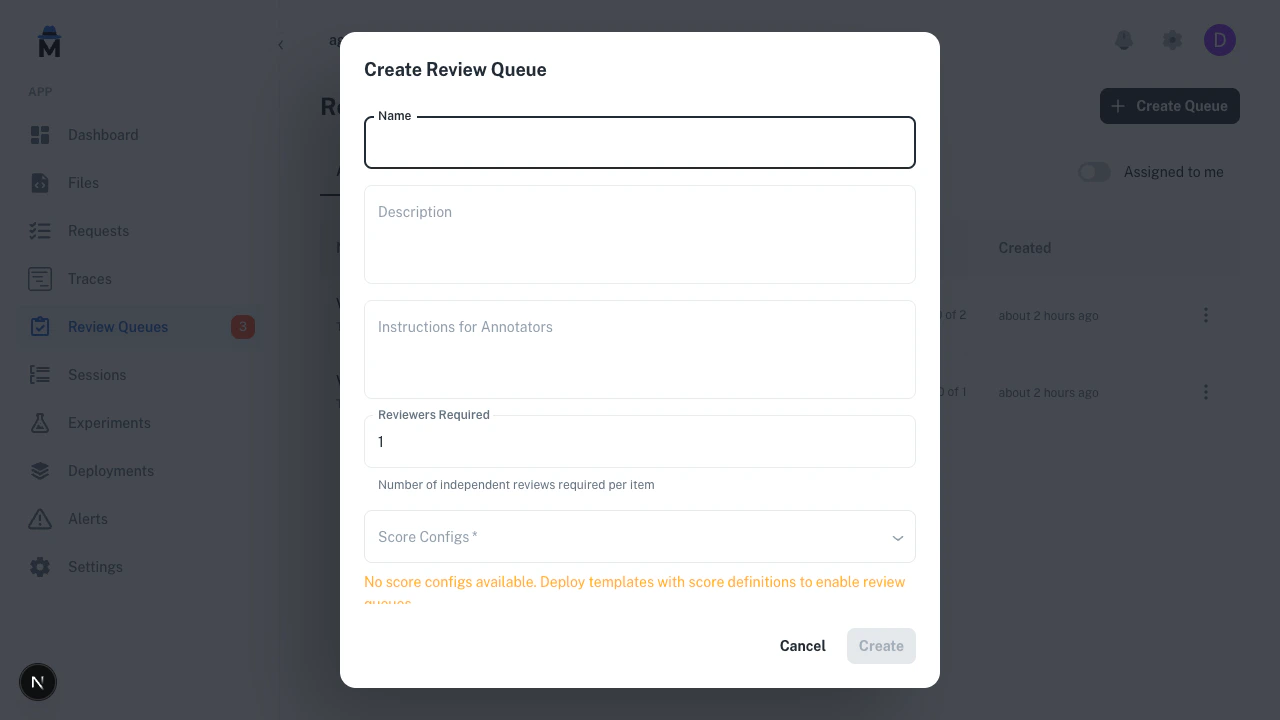 The **Create Review Queue** dialog takes a name, optional description and annotator instructions, the number of independent reviews required per item, and the set of score configs to show to reviewers. You can select a default dataset to pre-fill the **Add to Dataset** action during review.
| Field | Required | Description |
| ------------------------------- | -------- | --------------------------------------------------------------------------------------------- |
| **Name** | Yes | Descriptive name for the review batch |
| **Description** | No | Context for what this queue covers |
| **Instructions for annotators** | No | Guidance shown during review (for example, "Mark PASS if factually correct and professional") |
| **Reviewers required** | Yes | Independent reviews needed per item (default: 1) |
| **Score configs** | Yes | Which scoring dimensions to show during review |
| **Default dataset** | No | Pre-selects a dataset for the **Add to Dataset** action |
### Add items
Go to the **Traces** page and select traces using the checkboxes.
Click **Add to Queue** in the bulk actions bar, choose a queue, and confirm.
When viewing a trace in the drawer, click **Add to Queue** in the action bar. This adds the selected span, not the whole trace, to the queue.
On the experiment detail page, select items and add them to a queue for review.
### Queue detail
Click any queue to see its items, progress, and reviewer assignments.
The **Create Review Queue** dialog takes a name, optional description and annotator instructions, the number of independent reviews required per item, and the set of score configs to show to reviewers. You can select a default dataset to pre-fill the **Add to Dataset** action during review.
| Field | Required | Description |
| ------------------------------- | -------- | --------------------------------------------------------------------------------------------- |
| **Name** | Yes | Descriptive name for the review batch |
| **Description** | No | Context for what this queue covers |
| **Instructions for annotators** | No | Guidance shown during review (for example, "Mark PASS if factually correct and professional") |
| **Reviewers required** | Yes | Independent reviews needed per item (default: 1) |
| **Score configs** | Yes | Which scoring dimensions to show during review |
| **Default dataset** | No | Pre-selects a dataset for the **Add to Dataset** action |
### Add items
Go to the **Traces** page and select traces using the checkboxes.
Click **Add to Queue** in the bulk actions bar, choose a queue, and confirm.
When viewing a trace in the drawer, click **Add to Queue** in the action bar. This adds the selected span, not the whole trace, to the queue.
On the experiment detail page, select items and add them to a queue for review.
### Queue detail
Click any queue to see its items, progress, and reviewer assignments.
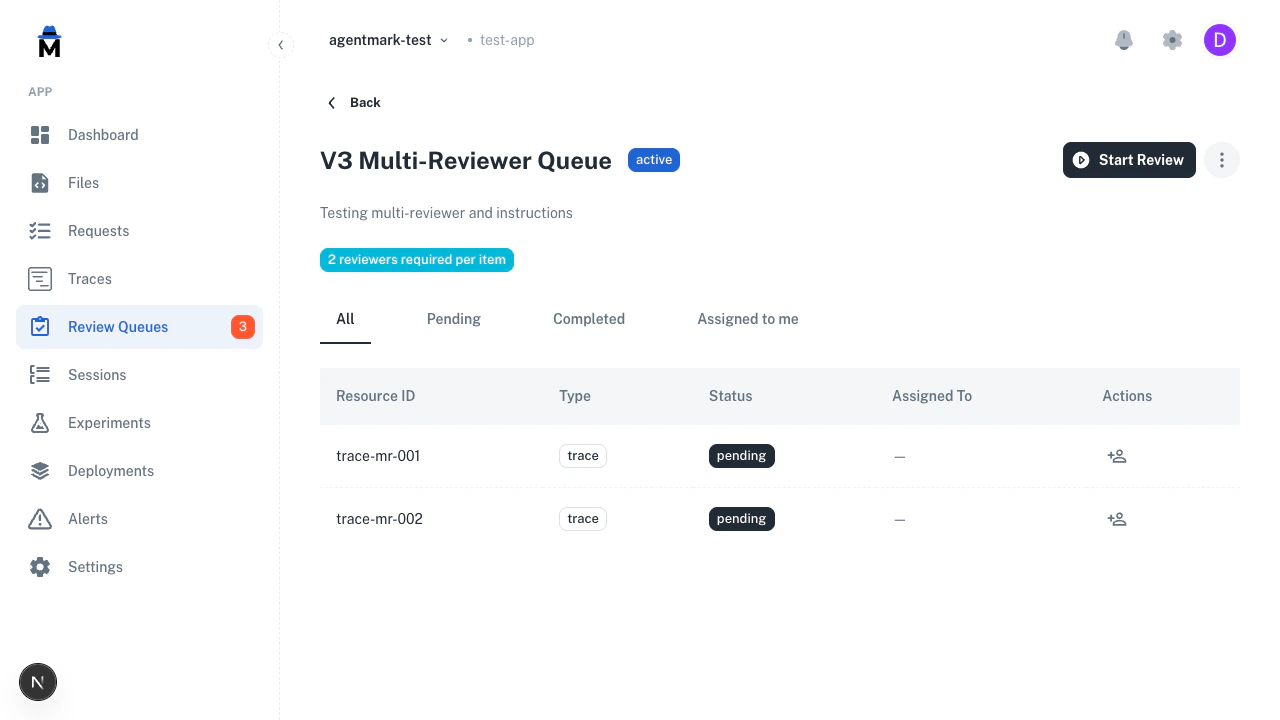 The queue detail view lists every item with status (pending, completed, skipped), resource type (trace, span, or session), and assignee. Filter tabs across the top narrow by status, and a multi-reviewer badge shows how many independent reviews remain per item.
Filter items using the tabs:
| Tab | Shows |
| ---------------- | ------------------------- |
| **All** | Every item in the queue |
| **Pending** | Items waiting for review |
| **Completed** | Reviewed or skipped items |
| `Assigned to me` | Items assigned to you |
Click the assign icon on any row to assign it to a team member. Use the three-dot menu to archive a queue when review is complete.
### Review workflow
Click **Start Review** to begin. The review view splits into two panels.
**Left panel (trace content):**
* Header showing the trace name
* Root span input and output, falling back to trace-level data
* A **Spans (N)** accordion, collapsed by default; expand it and click any span to see its I/O
* For session items, a conversation timeline showing all turns
**Right panel (annotation):**
* Annotator instructions (collapsible, from queue config)
* **Existing annotations**: a read-only list of annotation scores already saved on this resource
* Score controls for each configured dimension
* **Add to Dataset** section with auto-extracted input and an editable expected output
| Action | Shortcut | What it does |
| ------------------- | --------- | ---------------------------------------------------- |
| **Complete + Next** | `Enter` | Save scores, mark complete, advance |
| **Pass / fail** | `p` / `f` | Set the first boolean score to pass or fail |
| **Pick a category** | `1`-`9` | Select the Nth option of the first categorical score |
| **Skip** | None | Mark as skipped, advance |
| **Back** | None | Return to queue detail |
The review footer shows the same hints: `Enter — complete · p/f — pass/fail · 1-9 — category`. The review view ignores the letter and digit shortcuts while you're typing in a text field.
The queue holds dataset items staged through the **Add to Dataset** section while review is in progress. AgentMark commits them to the target dataset in a single batch once you mark the queue completed, so staged items won't appear in the dataset until queue completion. This keeps the dataset clean if you pause, abandon, or revert a review.
### Multi-reviewer
When you set **reviewers required** above 1, each reviewer annotates independently:
* The review header shows a progress badge (for example, "0/2 reviewed") tracking how many reviewers have completed their assessment
* Each reviewer fills out their own fresh annotation form. Scores saved by earlier reviewers appear in the read-only **Existing annotations** list, so reviews are independent but not blind
* The queue marks an item **complete** only once it collects the required number of independent reviews
* The `/next` endpoint automatically skips items the current reviewer has already reviewed, so each reviewer only sees items they haven't scored yet
Use multi-reviewer for high-stakes evaluations like safety reviews or fine-tuning dataset curation where a single reviewer's judgment isn't sufficient.
### Resource types
Queues support three item types:
| Type | When to use | What the reviewer sees |
| ----------- | ------------------------------------------- | --------------------------------------- |
| **Trace** | Review a complete request | Full trace with expandable per-span I/O |
| **Span** | Review a single LLM call or tool invocation | Individual span content |
| **Session** | Review a multi-turn conversation | Conversation timeline across traces |
## End-to-end example: dataset curation
A common workflow is using annotation queues to curate high-quality datasets from production traces.
Create a queue with a boolean score config (for example, `dataset_quality`) and set the **default dataset** to your target dataset.
Go to **Traces**, filter to interesting traces (errors, low automated scores, specific prompts), select them, and add to the queue.
Click **Start Review**. For each trace, read the I/O, mark Pass or Fail, and optionally edit the input and expected output before staging them for the dataset.
In the **Add to Dataset** section, verify the auto-extracted fields and click **Stage for Dataset** (the button changes to **Staged**). The default dataset is pre-selected. The queue holds staged items until you complete it.
Once you have reviewed every item, mark the queue as completed. AgentMark commits all staged dataset items to the target dataset in a single batch at this point.
Run experiments against the curated dataset to validate prompt changes against human-verified examples.
## Human annotation vs automated evals
Use both together. They serve different purposes.
| | Human annotation | Automated evals |
| -------------- | -------------------------------------- | -------------------------------------- |
| **Created by** | Team members in the Dashboard | Eval functions during experiments |
| **Best for** | Subjective quality, edge cases, nuance | Regression testing, scale, consistency |
| **Scale** | Tens to hundreds of items | Entire datasets |
| **When** | Anytime, on any trace | During experiment runs |
Automated evals catch regressions at scale. Human annotations handle the cases machines can't judge, and they give you the ground truth to calibrate your automated scorers against.
Score the same set of traces with both human reviewers and your LLM-as-judge eval. Compare the results to identify where your automated scorer disagrees with human judgment, then tune your eval prompt accordingly.
## Related
Automate scoring with eval functions
Create and manage test datasets
Run prompts against datasets to validate quality
View and explore trace data
The queue detail view lists every item with status (pending, completed, skipped), resource type (trace, span, or session), and assignee. Filter tabs across the top narrow by status, and a multi-reviewer badge shows how many independent reviews remain per item.
Filter items using the tabs:
| Tab | Shows |
| ---------------- | ------------------------- |
| **All** | Every item in the queue |
| **Pending** | Items waiting for review |
| **Completed** | Reviewed or skipped items |
| `Assigned to me` | Items assigned to you |
Click the assign icon on any row to assign it to a team member. Use the three-dot menu to archive a queue when review is complete.
### Review workflow
Click **Start Review** to begin. The review view splits into two panels.
**Left panel (trace content):**
* Header showing the trace name
* Root span input and output, falling back to trace-level data
* A **Spans (N)** accordion, collapsed by default; expand it and click any span to see its I/O
* For session items, a conversation timeline showing all turns
**Right panel (annotation):**
* Annotator instructions (collapsible, from queue config)
* **Existing annotations**: a read-only list of annotation scores already saved on this resource
* Score controls for each configured dimension
* **Add to Dataset** section with auto-extracted input and an editable expected output
| Action | Shortcut | What it does |
| ------------------- | --------- | ---------------------------------------------------- |
| **Complete + Next** | `Enter` | Save scores, mark complete, advance |
| **Pass / fail** | `p` / `f` | Set the first boolean score to pass or fail |
| **Pick a category** | `1`-`9` | Select the Nth option of the first categorical score |
| **Skip** | None | Mark as skipped, advance |
| **Back** | None | Return to queue detail |
The review footer shows the same hints: `Enter — complete · p/f — pass/fail · 1-9 — category`. The review view ignores the letter and digit shortcuts while you're typing in a text field.
The queue holds dataset items staged through the **Add to Dataset** section while review is in progress. AgentMark commits them to the target dataset in a single batch once you mark the queue completed, so staged items won't appear in the dataset until queue completion. This keeps the dataset clean if you pause, abandon, or revert a review.
### Multi-reviewer
When you set **reviewers required** above 1, each reviewer annotates independently:
* The review header shows a progress badge (for example, "0/2 reviewed") tracking how many reviewers have completed their assessment
* Each reviewer fills out their own fresh annotation form. Scores saved by earlier reviewers appear in the read-only **Existing annotations** list, so reviews are independent but not blind
* The queue marks an item **complete** only once it collects the required number of independent reviews
* The `/next` endpoint automatically skips items the current reviewer has already reviewed, so each reviewer only sees items they haven't scored yet
Use multi-reviewer for high-stakes evaluations like safety reviews or fine-tuning dataset curation where a single reviewer's judgment isn't sufficient.
### Resource types
Queues support three item types:
| Type | When to use | What the reviewer sees |
| ----------- | ------------------------------------------- | --------------------------------------- |
| **Trace** | Review a complete request | Full trace with expandable per-span I/O |
| **Span** | Review a single LLM call or tool invocation | Individual span content |
| **Session** | Review a multi-turn conversation | Conversation timeline across traces |
## End-to-end example: dataset curation
A common workflow is using annotation queues to curate high-quality datasets from production traces.
Create a queue with a boolean score config (for example, `dataset_quality`) and set the **default dataset** to your target dataset.
Go to **Traces**, filter to interesting traces (errors, low automated scores, specific prompts), select them, and add to the queue.
Click **Start Review**. For each trace, read the I/O, mark Pass or Fail, and optionally edit the input and expected output before staging them for the dataset.
In the **Add to Dataset** section, verify the auto-extracted fields and click **Stage for Dataset** (the button changes to **Staged**). The default dataset is pre-selected. The queue holds staged items until you complete it.
Once you have reviewed every item, mark the queue as completed. AgentMark commits all staged dataset items to the target dataset in a single batch at this point.
Run experiments against the curated dataset to validate prompt changes against human-verified examples.
## Human annotation vs automated evals
Use both together. They serve different purposes.
| | Human annotation | Automated evals |
| -------------- | -------------------------------------- | -------------------------------------- |
| **Created by** | Team members in the Dashboard | Eval functions during experiments |
| **Best for** | Subjective quality, edge cases, nuance | Regression testing, scale, consistency |
| **Scale** | Tens to hundreds of items | Entire datasets |
| **When** | Anytime, on any trace | During experiment runs |
Automated evals catch regressions at scale. Human annotations handle the cases machines can't judge, and they give you the ground truth to calibrate your automated scorers against.
Score the same set of traces with both human reviewers and your LLM-as-judge eval. Compare the results to identify where your automated scorer disagrees with human judgment, then tune your eval prompt accordingly.
## Related
Automate scoring with eval functions
Create and manage test datasets
Run prompts against datasets to validate quality
View and explore trace data
Have questions?
Reach out any time: