Documentation Index Fetch the complete documentation index at: https://docs.agentmark.co/llms.txt
Use this file to discover all available pages before exploring further.
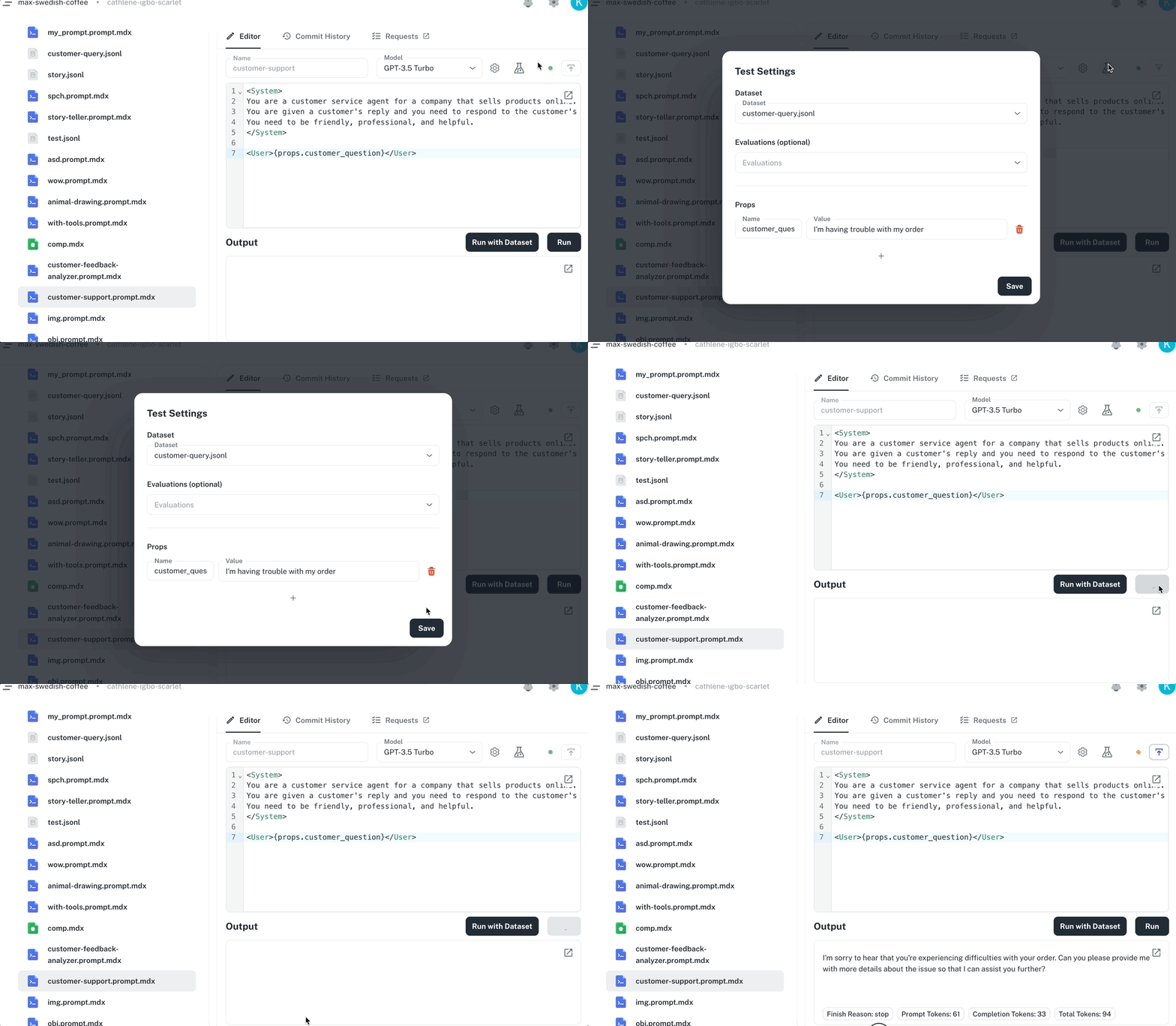
Run from the Dashboard Open any prompt in the Dashboard editor, fill in your input variables, and click Run . Results stream back in real time. The animation shows the Dashboard’s prompt editor running a prompt: the user fills input variables in the right-hand panel, clicks Run , and the response streams back in the output pane while tokens, cost, and model information appear in the footer. Every run is automatically traced. Navigate to Traces to see the execution timeline, token usage, cost, and model information for each run. Run from the playground The Playground lets you run the same prompt across multiple models and parameter configurations side-by-side. Compare outputs, tweak prompt text per variant, and apply the winning configuration back to your editor. CLI usage Run prompts from the command line for quick testing during development. npx agentmark run-prompt agentmark/greeting.prompt.mdx
Requires the development server running (npx agentmark dev).
Passing props Inline JSON :npx agentmark run-prompt agentmark/greeting.prompt.mdx \ --props '{"name": "Alice", "role": "developer"}'
From file :npx agentmark run-prompt agentmark/greeting.prompt.mdx \ --props-file ./test-data.json
Output examples Text generation :=== Text Prompt Results === Once upon a time... ──────────────────────────────────────────────────────────── 🪙 250 in, 100 out, 350 total 📊 View trace: http://localhost:3000/traces?traceId=<id>
Object generation :=== Object Prompt Results === { "name": "John Smith", "email": "john@example.com" } ──────────────────────────────────────────────────────────── 🪙 180 in, 45 out, 225 total 📊 View trace: http://localhost:3000/traces?traceId=<id>
Image and speech generation — saved to .agentmark-outputs/:=== Image Prompt Results === Saved 2 image(s) to: - .agentmark-outputs/image-1-1698765432.png - .agentmark-outputs/image-2-1698765432.png
SDK usage AgentMark works with multiple AI SDKs through adapters. The pattern is always:
Load prompt with the appropriate loader
Format with props (and optionally telemetry)
Pass to your adapter’s generation function
Text generation import { client } from './agentmark.client' ; import { generateText } from 'ai' ; const prompt = await client . loadTextPrompt ( 'agentmark/greeting.prompt.mdx' ); const input = await prompt . format ({ props: { name: 'Alice' , role: 'developer' } }); const result = await generateText ( input ); console . log ( result . text );
from agentmark_client import client from agentmark_pydantic_ai_v0 import run_text_prompt prompt = await client.load_text_prompt( "agentmark/greeting.prompt.mdx" ) params = await prompt.format( props = { "name" : "Alice" , "role" : "developer" }) result = await run_text_prompt(params) print (result.text)
Streaming Use streamText() and streamObject() to stream responses token-by-token: import { client } from './agentmark.client' ; import { streamText } from 'ai' ; const prompt = await client . loadTextPrompt ( 'agentmark/story.prompt.mdx' ); const input = await prompt . format ({ props: { topic: 'space exploration' } }); const result = streamText ( input ); for await ( const chunk of result . textStream ) { process . stdout . write ( chunk ); }
For structured output: import { streamObject } from 'ai' ; const prompt = await client . loadObjectPrompt ( 'agentmark/extract-data.prompt.mdx' ); const input = await prompt . format ({ props: { input: 'Contact John Smith at john@example.com' } }); const result = streamObject ( input ); for await ( const partial of result . partialObjectStream ) { console . log ( partial ); }
from agentmark_client import client from agentmark_pydantic_ai_v0 import stream_text_prompt prompt = await client.load_text_prompt( "agentmark/story.prompt.mdx" ) params = await prompt.format( props = { "topic" : "space exploration" }) async for chunk in stream_text_prompt(params): print (chunk, end = "" )
Object generation import { client } from './agentmark.client' ; import { generateObject } from 'ai' ; const prompt = await client . loadObjectPrompt ( 'agentmark/extract-data.prompt.mdx' ); const input = await prompt . format ({ props: { input: 'Contact John Smith at john@example.com' } }); const result = await generateObject ( input ); console . log ( result . object ); // { name: "John Smith", email: "john@example.com" }
from agentmark_client import client from agentmark_pydantic_ai_v0 import run_object_prompt prompt = await client.load_object_prompt( "agentmark/extract-data.prompt.mdx" ) params = await prompt.format( props = { "input" : "Contact John Smith at john@example.com" } ) result = await run_object_prompt(params) print (result.object)
Image generation import { client } from './agentmark.client' ; import { experimental_generateImage } from 'ai' ; const prompt = await client . loadImagePrompt ( 'agentmark/logo.prompt.mdx' ); const input = await prompt . format ({ props: { company: 'Acme Corp' , style: 'modern' } }); const result = await experimental_generateImage ( input ); result . images . forEach (( image , i ) => { fs . writeFileSync ( `logo- ${ i } .png` , image . data ); });
TypeScript only — no Python equivalent yet.
Speech generation import { client } from './agentmark.client' ; import { experimental_generateSpeech } from 'ai' ; const prompt = await client . loadSpeechPrompt ( 'agentmark/narration.prompt.mdx' ); const input = await prompt . format ({ props: { script: 'Welcome to our podcast' } }); const result = await experimental_generateSpeech ( input ); fs . writeFileSync ( 'narration.mp3' , result . audio );
TypeScript only — no Python equivalent yet.
Using other adapters The pattern is the same for all adapters:
Vercel AI SDK : generateText(), generateObject(), streamText(), streamObject()Mastra : agent.generate()Custom : Your own generation function Learn more about adapters → Tracing prompt runs Enable telemetry to automatically trace every prompt execution. Traces capture input/output, token usage, cost, latency, and custom metadata. const input = await prompt . format ({ props: { name: 'Alice' }, telemetry: { isEnabled: true , functionId: 'greeting-handler' , metadata: { userId: 'user-123' , environment: 'production' } } }); const result = await generateText ( input );
View traces locally at http://localhost:3000 or in the Dashboard under Traces . See Tracing Setup for the full API. Caching The AgentMark API loader caches loaded prompts client-side with a 60-second TTL by default. This means repeated calls to loadTextPrompt() within the TTL window return the cached version without a network request. Caching is automatic — no configuration needed. After the TTL expires, the next request re-fetches from the server. Troubleshooting Server connection error — Ensure npx agentmark dev is running. Check ports 9417 and 9418 are available.File not found — Verify the file path and .prompt.mdx extension.Invalid JSON in props — Use valid JSON with double quotes.Next steps
Running Experiments Test prompts against datasets
Generation Types Text, objects, images, and audio
Version Control Track changes and rollback to previous versions
Integrations Vercel AI SDK, Pydantic AI, Mastra, and more
Have Questions? We’re here to help! Choose the best way to reach us: