

text_config.tools. The AgentMark client doesn’t hold or execute tool implementations: you resolve each name to an implementation where you call the model (in your SDK call or an executor). The render carries names; your call site owns the implementations.
Reference tools by name in frontmatter
List the tools a prompt can use undertext_config.tools. Each entry is a name, a string you’ll later map to a real implementation:
calculator.prompt.mdx
calculate is the contract between the prompt and your call site.
Define a tool implementation
Define each tool however your SDK expects. With the Vercel AI SDK, that’s theai package’s tool() helper, which takes a description, an inputSchema (a Zod schema for its input), and an execute function:
tool() value is a native AI SDK object; it isn’t passed to createAgentMark. You hold it in your own code and look it up by name when you call the model.
Resolve names to implementations at your call site
Keep a lookup from tool name to implementation (a plainRecord<string, Tool>) and select the entries the prompt asked for. The neutral render gives you the requested names in text_config.tools; pass the resolved implementations to your SDK call:
Record<string, Tool> lookup applies unchanged.
MCP tools in frontmatter
Tool entries can also name Model Context Protocol tools with themcp://{server}/{tool} syntax, or mcp://{server}/* to include every tool a server exports. The render surfaces these names like any other tool entry; your runtime connects the MCP server when it makes the call. See MCP integration for declaring servers in agentmark.json, the mcp:// URI syntax, and connecting servers at your call site.
Agents
Setmax_calls to bound a multi-step agent loop. AgentMark surfaces the value in text_config.max_calls; your SDK or executor reads it to cap how many times the model may call tools before finishing. With the Vercel AI SDK, you’d map it to stopWhen: stepCountIs(max_calls):
travel-agent.prompt.mdx
max_calls and feeds tool results back to the model until the task is complete.
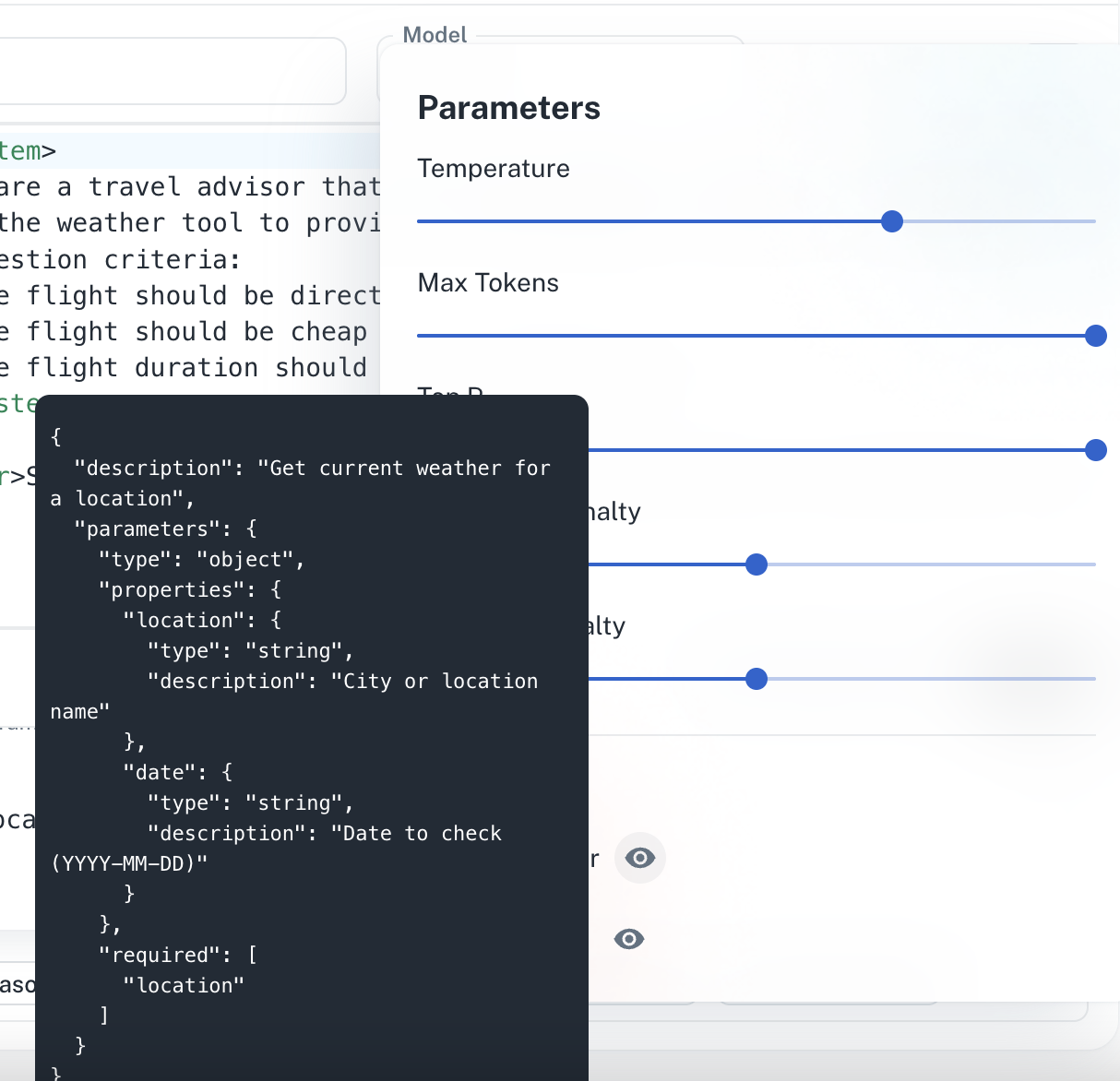
Testing agents in the Dashboard
Cloud feature. Test agents visually in the AgentMark Dashboard.
Best practices
- Keep tools focused on a single responsibility.
- Provide clear descriptions to help the LLM use tools appropriately.
- Handle errors gracefully and return informative error messages.
- Use descriptive parameter names and include helpful descriptions.
- Resolve tool names in one place (a shared registry or executor) so prompts and your call site stay in sync.
Have questions?
Reach out any time:
- Email the team at hello@agentmark.co for support
- Schedule an Enterprise Demo to learn about AgentMark’s business solutions