

Developers set up observability in your application. See Development documentation for setup instructions.
What AgentMark tracks
AgentMark records the following token and cost data for each LLM generation span:- Input tokens (prompt tokens): The number of tokens in the prompt sent to the model
- Output tokens (completion tokens): The number of tokens in the model’s response
- Total tokens: The sum of input and output tokens
- Reasoning tokens: Additional tokens used by models that support chain-of-thought reasoning (such as OpenAI o1 and o3). These tokens represent the model’s internal reasoning steps before producing a response.
- Cost: The dollar cost of the request, calculated from token counts and the model’s pricing
How costs are calculated
AgentMark computes cost automatically based on the model used and current provider pricing:For custom or self-hosted models not in the built-in pricing table, you can define pricing in your
agentmark.json using model schemas. See Custom model pricing below.Supported providers
AgentMark maintains pricing for models from these providers:- OpenAI — GPT-4o, GPT-4, GPT-3.5, o1, o3, and variants
- Anthropic — Claude 4, Claude 3.5, Claude 3, and variants
- Google — Gemini 2.5, Gemini 2.0, Gemini 1.5, and variants
- Meta — Llama models (when accessed through supported APIs)
- Mistral — Mistral Large, Medium, Small, and variants
- Cohere — Command R, Command R+, and variants
Where to view cost data
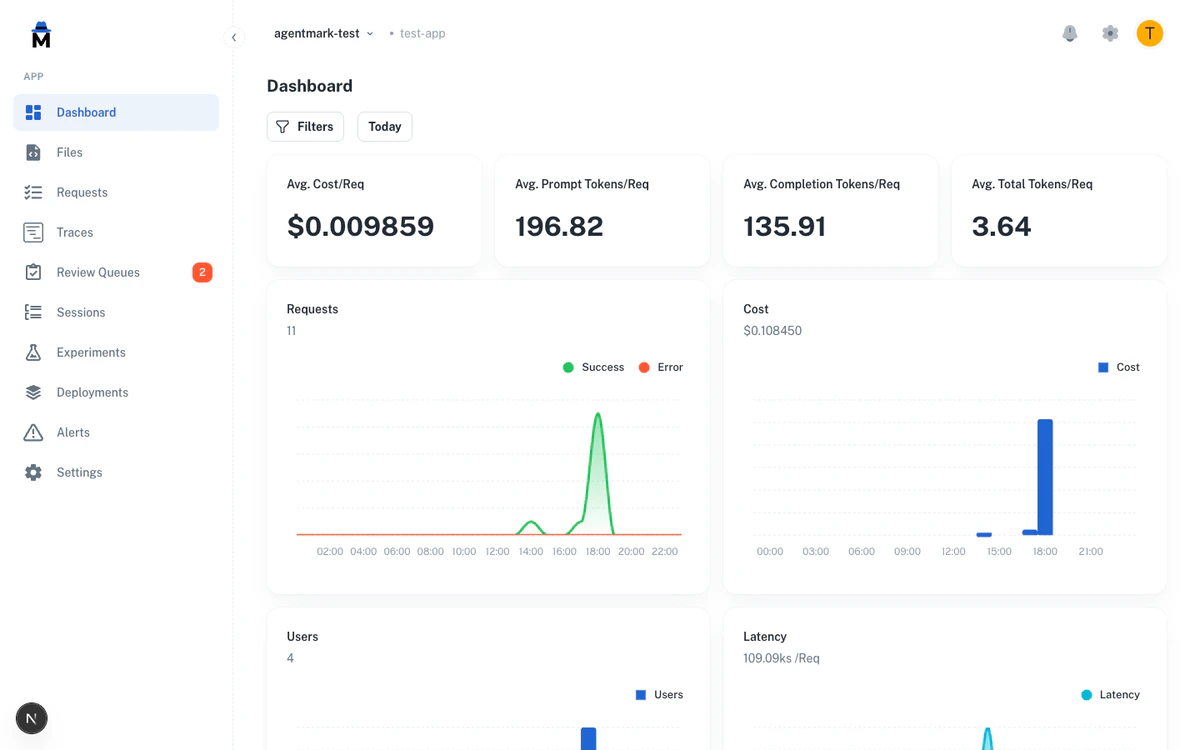
Dashboard metrics
The Metrics page shows aggregate cost data across your application:- Total cost over your selected time range
- Cost by model to see which models drive your spending
- Cost trends over time to identify usage patterns
- Average cost per request to understand per-call economics
Trace list
Each trace in the Traces list displays its cost and token counts. Use this to inspect individual requests and understand their resource consumption.Trace detail
When you open a trace, each generation span shows its own token breakdown:- Input tokens, output tokens, and total tokens
- Reasoning tokens (when the model supports it)
- Cost for that specific LLM call
Sessions
The Sessions view aggregates cost and token usage across all traces in a session. This is useful for understanding the total cost of multi-turn conversations or agent workflows.Per-user cost attribution
The dashboard tracks cost and token usage per user when you pass auserId to the SDK’s trace() function. Use this for billing, capacity planning, or identifying heavy users. Filter traces by user ID in the Filtering and search view.
Filtering by cost and tokens
You can filter traces by cost or token count using numeric operators in the filter bar. This helps you quickly find expensive or token-heavy requests. Available cost and token filters:- Cost — Filter traces where cost equals, exceeds, or falls below a threshold (for example, cost > $0.10)
- Input tokens — Filter by prompt token count
- Output tokens — Filter by completion token count
- Total tokens — Filter by combined token count
equals/notEquals— Exact matchgt/gte— Greater than / greater than or equallt/lte— Less than / less than or equal
Aggregate analysis
Switch to the aggregate view on the Requests page to group requests by a dimension and compare cost and token usage:- Group by model to compare cost efficiency across models
- Group by user to see per-user spending
- Group by prompt name to identify which prompts are most expensive
Custom model pricing
For models not in the built-in pricing table (such as self-hosted models, fine-tuned models, or newer providers), you can define custom pricing in youragentmark.json using model schemas:
| Property | Description |
|---|---|
inputCost | Cost per unit for input tokens |
outputCost | Cost per unit for output tokens |
unitScale | Number of tokens per unit (e.g., 1000 = cost per 1K tokens, 1000000 = cost per 1M tokens) |
Best practices
Monitor cost trends regularly. Check the Metrics dashboard to spot unexpected cost increases early. A sudden spike may indicate a prompt regression or unexpected traffic. Use cost filters to find expensive requests. Filter traces where cost exceeds your expected per-request budget. Investigate high-cost traces to see if prompts can be optimized. Track per-user costs for billing. If you bill customers based on AI usage, the Users page provides the cost attribution data you need. Compare model costs. Use the aggregate view grouped by model to evaluate whether cheaper models can handle certain tasks without quality loss. Set up alerts for cost thresholds. Configure Alerts to notify you when cost metrics exceed acceptable levels.Next steps
Metrics
View aggregate cost and usage metrics
Traces and Logs
Inspect individual request costs
Alerts
Get notified of cost spikes
Filtering and Search
Filter traces by cost and tokens
Have Questions?
We’re here to help! Choose the best way to reach us:
- Email us at hello@agentmark.co for support
- Schedule an Enterprise Demo to learn about our business solutions