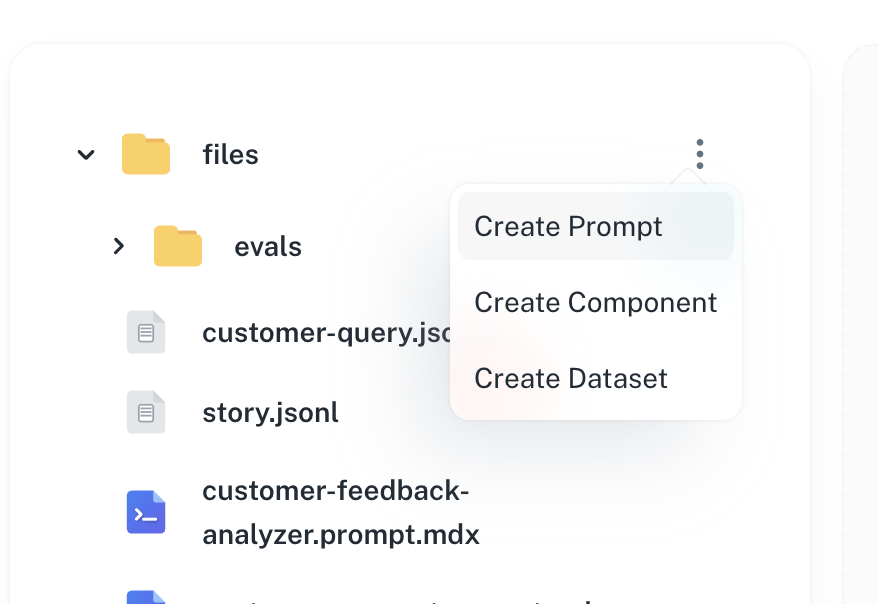
Open the create menu in the Dashboard to start a new prompt.The Create menu in the top bar lets you add a new prompt, dataset, or component to the current app.
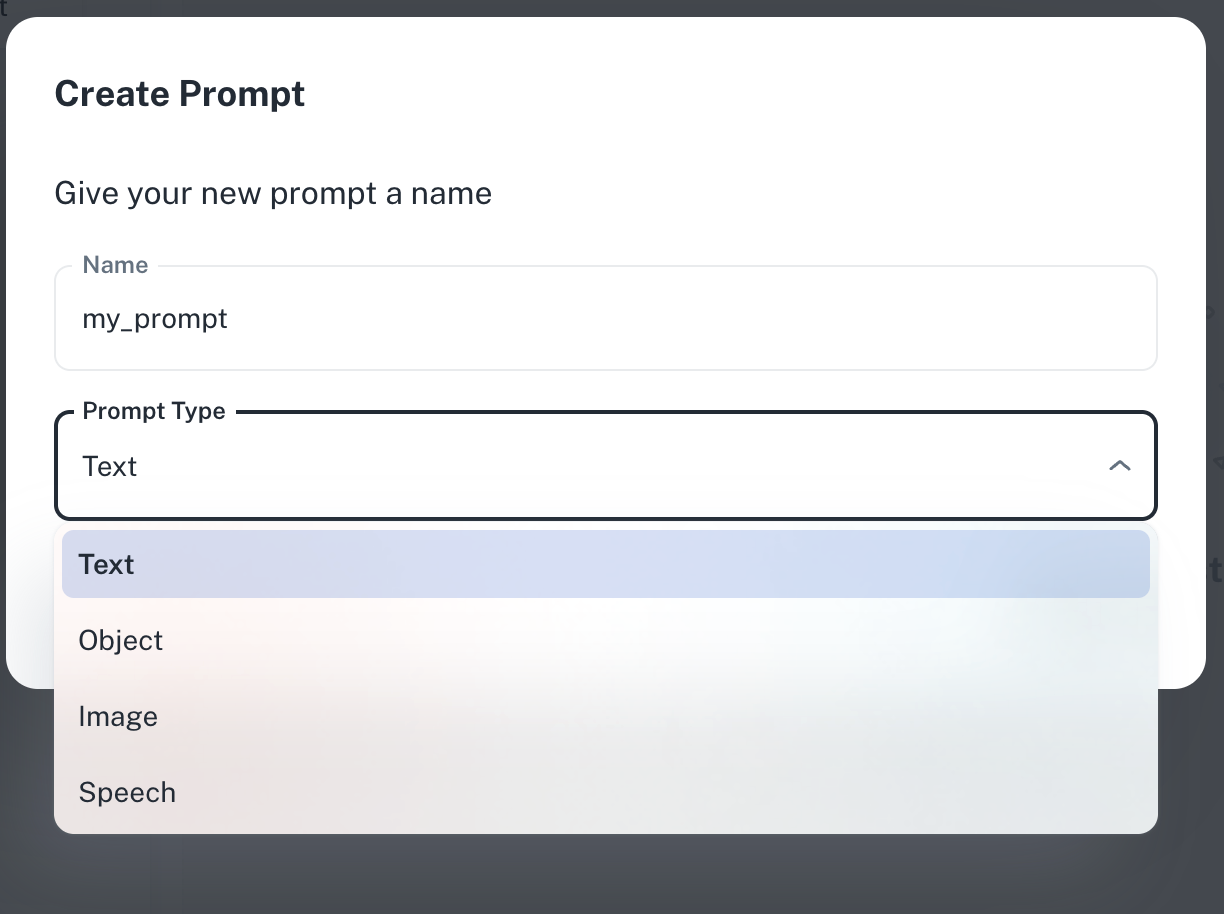
Give your prompt a descriptive name and choose the generation type (Text, Object, Image, or Speech).The new-prompt dialog takes a name (used as the filename under agentmark/) and a generation type — Text, Object, Image, or Speech — which determines the frontmatter config key and supported message tags.
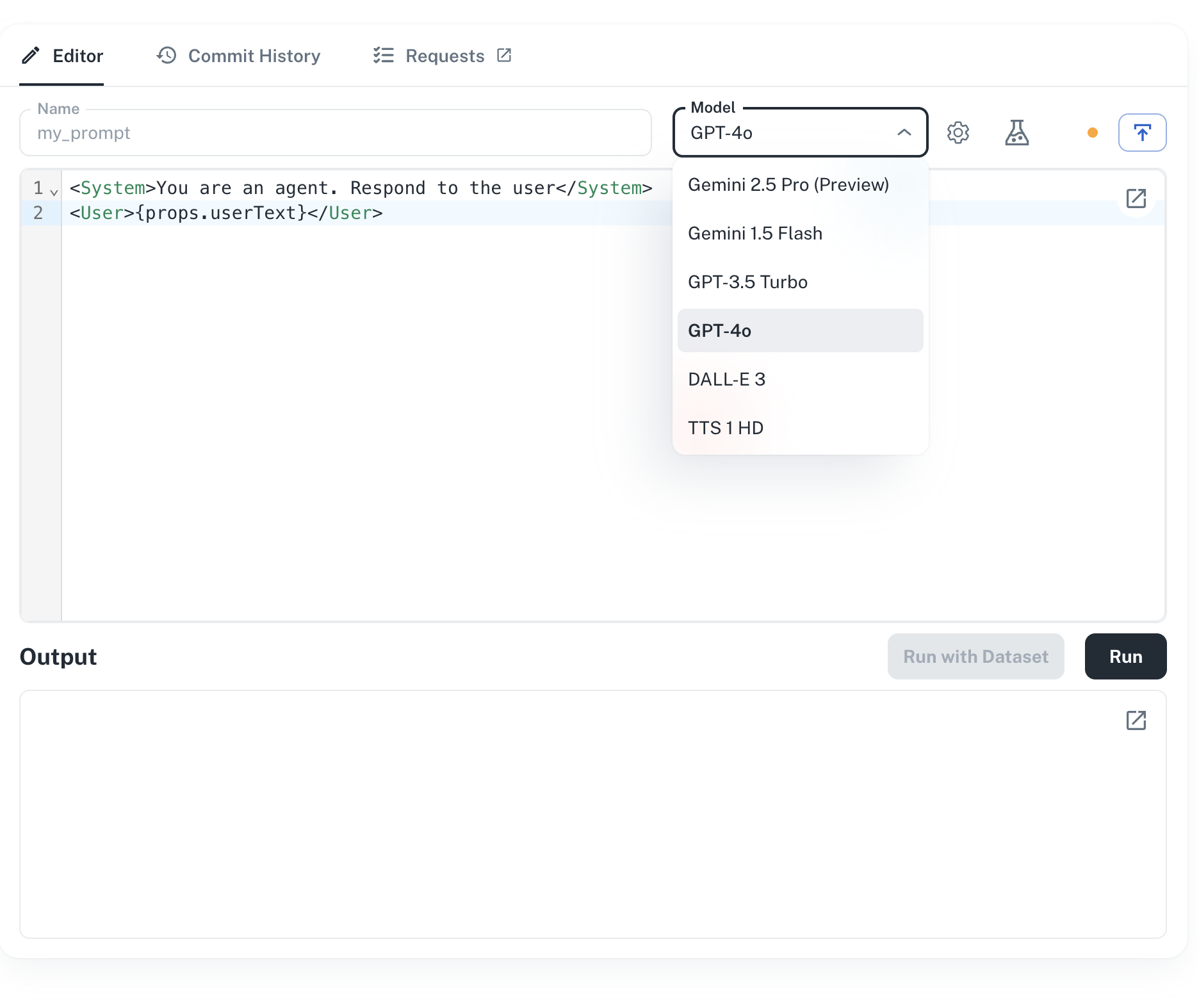
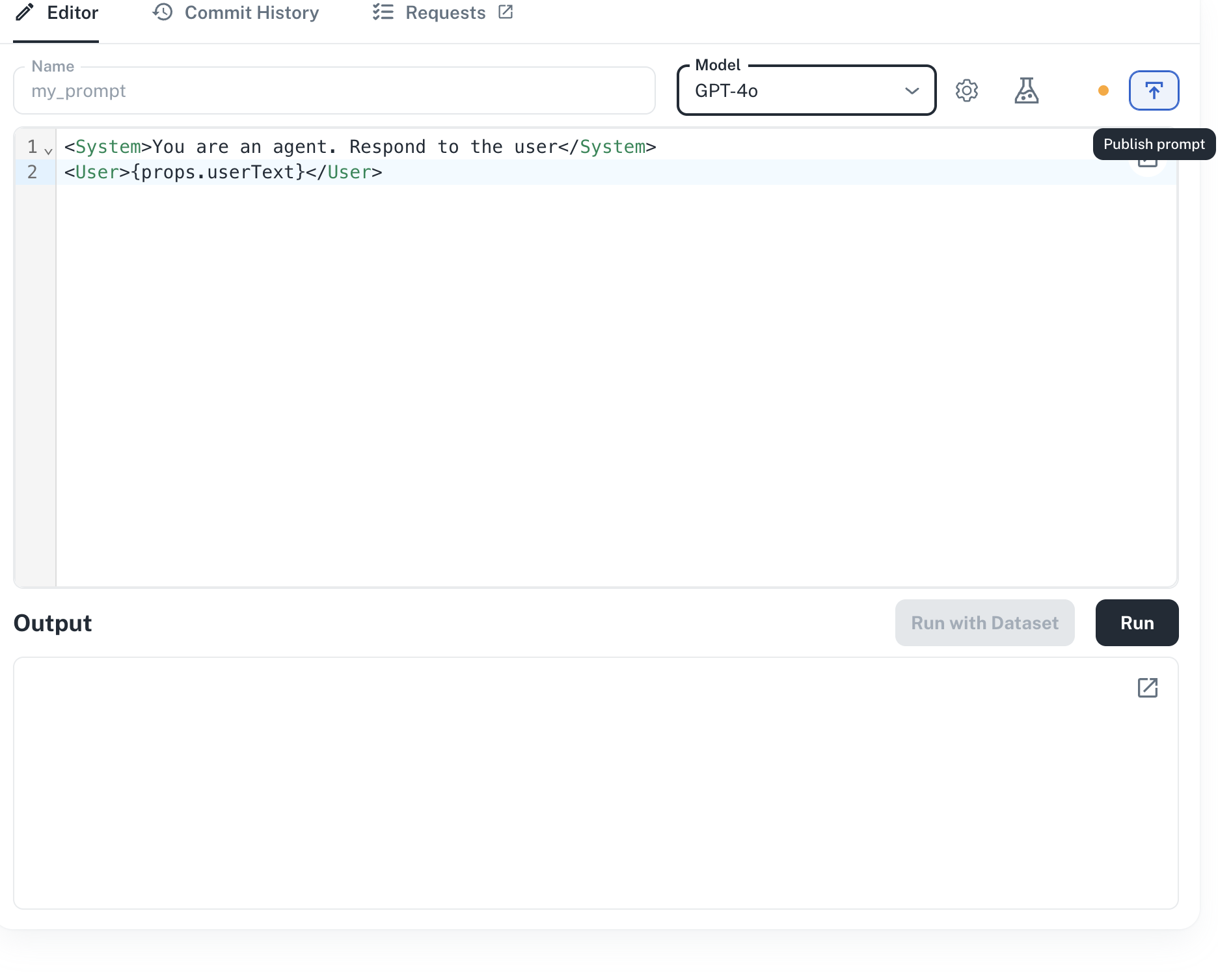
Select your model and write your prompt using message tags.The editor has a model selector, frontmatter for config (model, temperature, etc.), and a message-tag editor for the prompt body (<System>, <User>, <Assistant>). Syntax highlighting and inline validation help catch frontmatter or tag errors as you type.
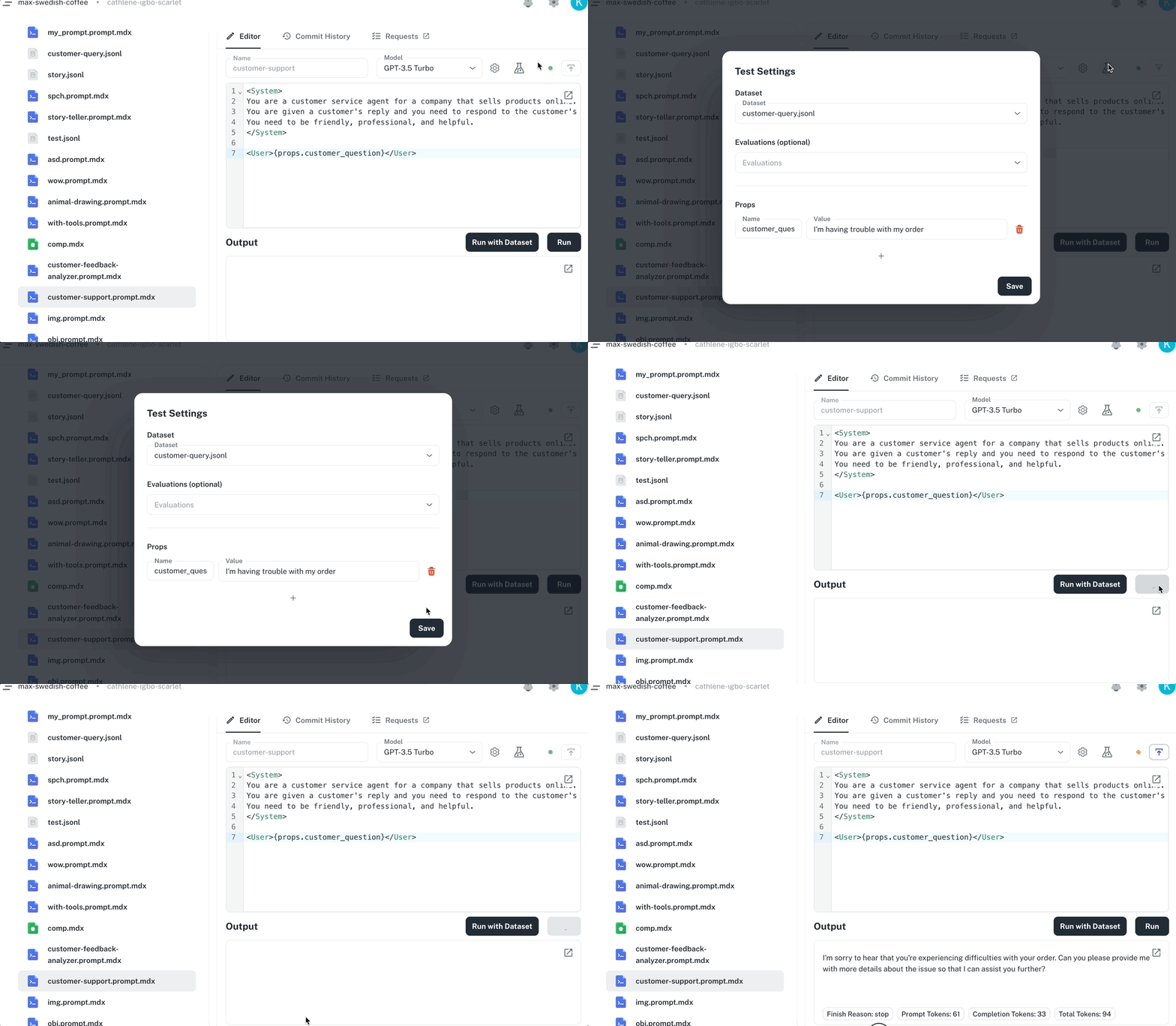
Add your input variables and run the prompt to see results.Fill the input-variable fields (any {props.foo} references in your prompt), then click Run to execute the prompt. The output streams into the right panel in real time.
Publish to save your changes and make them available to your application.The Publish button commits your edits to the app’s default Git branch and makes the new version available to your application via the SDK or CLI.Every change is automatically versioned. You can view the full version history, compare changes between versions, and rollback to any previous version from the Dashboard. See Version Control for details.
Add a new file in your project’s agentmark/ directory:
agentmark/greeting.prompt.mdx
---name: greetingtext_config: model_name: gpt-4o-mini temperature: 0.7---<System>You are a friendly assistant.</System><User>Say hello to {props.name} and tell them something interesting.</User>
Edit the file, save, and run again. With agentmark dev running, changes are picked up automatically.Your prompts are version-controlled in git alongside your code. When synced to Cloud, every change is tracked with full history and rollback. See Version Control for details.