

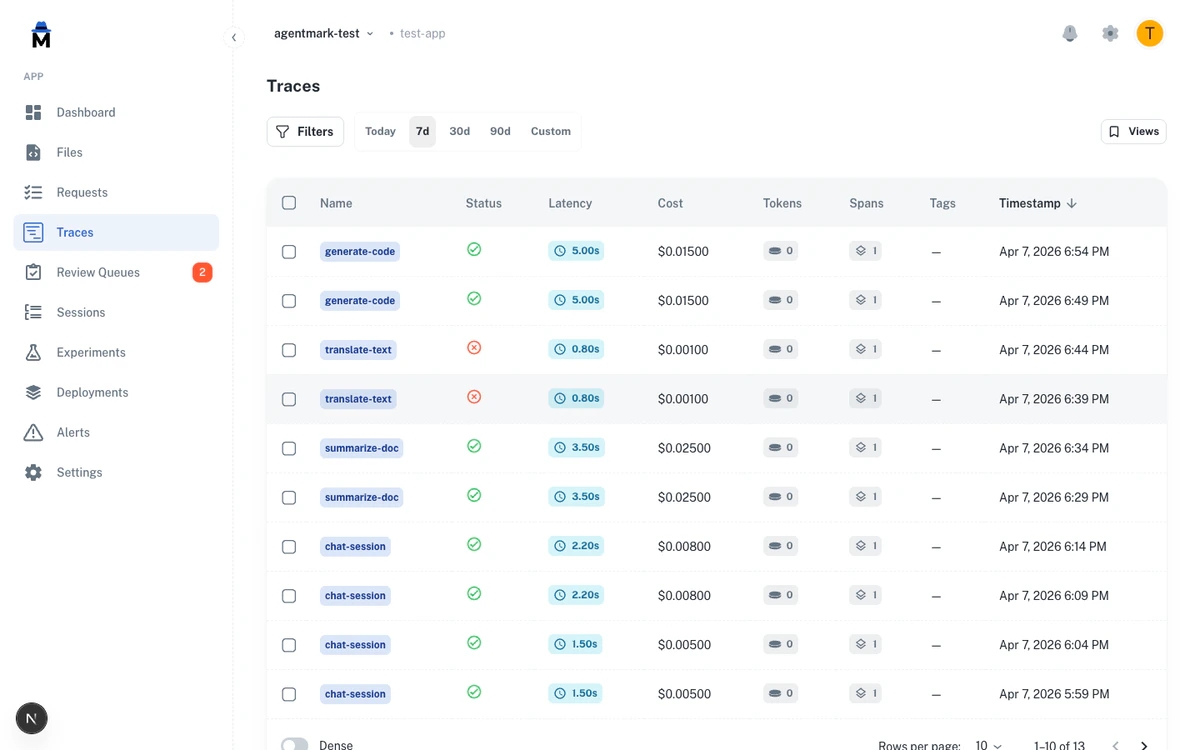
Filter popover
Click the Filters button above the trace or session list to open the filter popover. From here you can build filter expressions by adding one or more filter rows. Each filter row consists of three parts:- Field — the trace attribute to filter on
- Operator — the comparison to apply
- Value — the value to match against
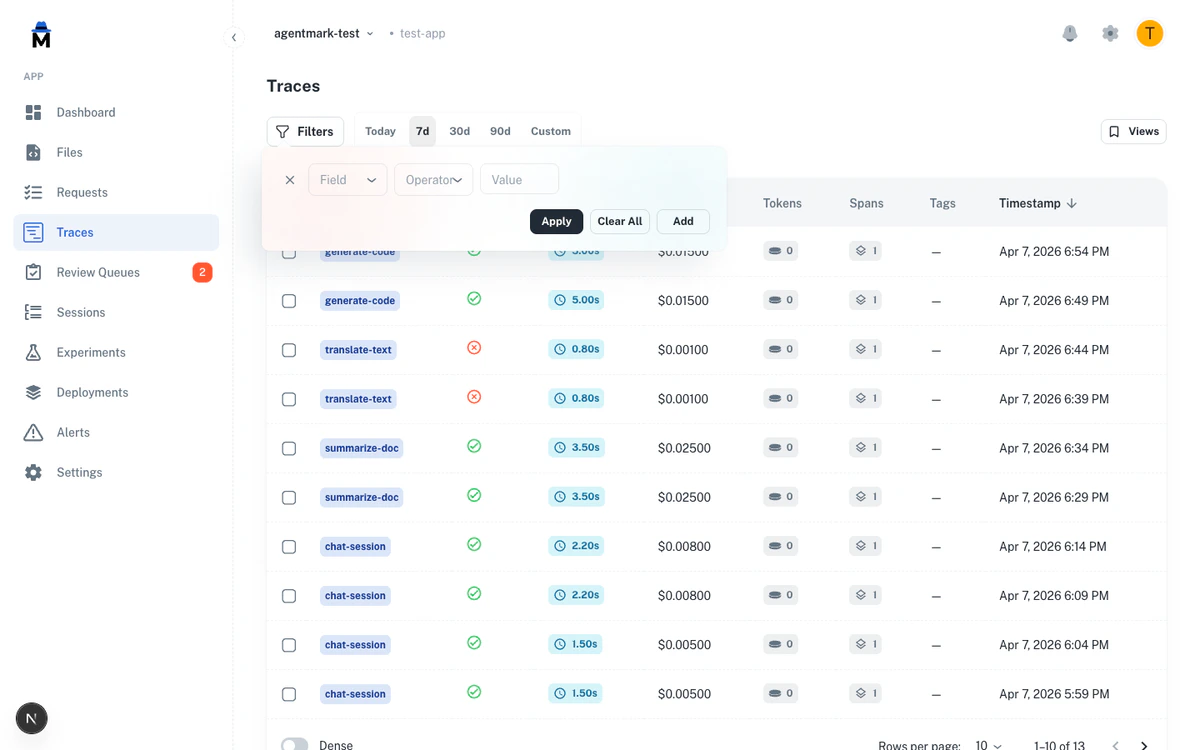
Available filter fields
String fields
These fields support the operators: Equals, Not Equals, Contains, Starts With, and Ends With.- Model (
model_used) — the LLM model used for the inference (e.g.,gpt-4o,claude-sonnet-4-20250514) - User ID (
user_id) — the user identifier attached to the trace - Prompt (
prompt_name) — the prompt or function name - Session (
session_id) — the session identifier grouping related traces
Enum fields
- Status (
status) — filter by trace outcome. Values: OK or ERROR. Supports Equals and Not Equals operators.
Numeric fields
These fields support the operators: Equals, Not Equals, Less Than, Less Than or Equal, Greater Than, and Greater Than or Equal.- Latency (ms) (
latency_ms) — total execution time in milliseconds - Cost ($) (
cost) — the computed cost of the inference - Prompt Tokens (
prompt_tokens) — number of input tokens consumed - Completion Tokens (
completion_tokens) — number of output tokens generated
Content fields
These fields support Contains and Starts With operators. Values must be at least 2 characters.- Input (
input) — the prompt input text - Output (
output) — the model response text
Dynamic fields
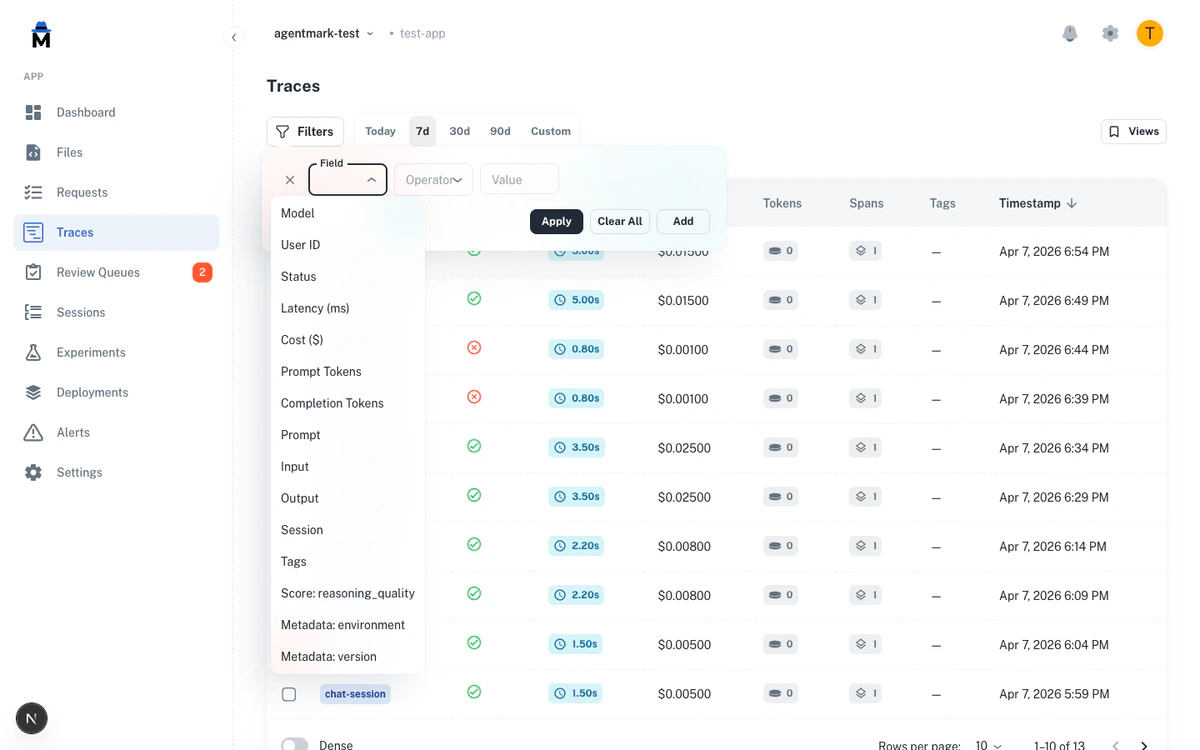
- Metadata: (
metadata.*) — any custom metadata key attached to your traces. Supports string operators plus Exists and Does Not Exist. - Score: (
score__*) — evaluation score names from your app’s scoring pipeline. Supports all numeric operators.
Date range
Both the Traces and Sessions pages include a date range selector. Use the preset ranges or define a custom window:- Today — traces from the current day
- 7d — last 7 days
- 30d — last 30 days
- 90d — last 90 days
- Custom — pick a specific start and end date
Column sorting
Every column in the trace and session lists is sortable. Click a column header to sort ascending, and click again to toggle to descending. Only one sort column is active at a time.Active filters bar
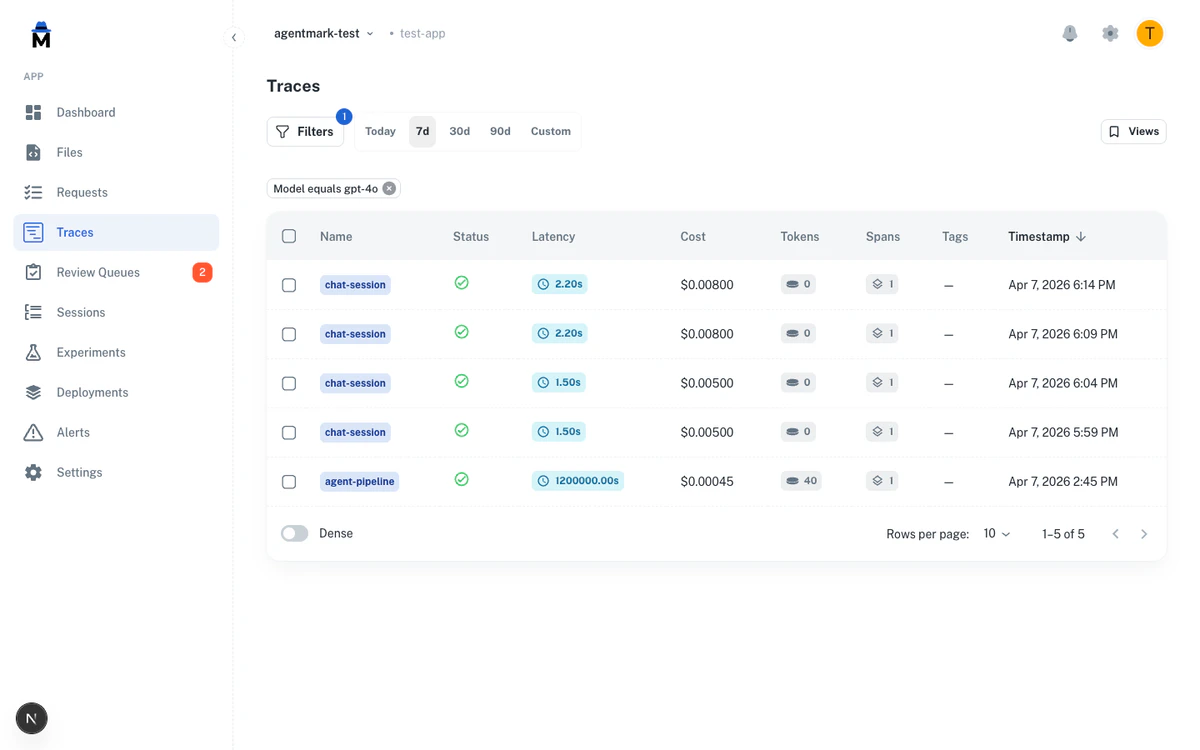
Score filtering
AgentMark automatically detects evaluation score names from your trace data and makes them available as filter fields. This lets you find traces based on quality metrics from your evaluation pipeline. To filter by score:- Open the filter popover
- Select a score field (e.g., Score: accuracy)
- Choose a numeric operator (e.g., Greater Than or Equal)
- Enter the threshold value (e.g.,
0.8) - Click Apply
Score names are dynamically populated. You will only see score fields that exist in your application’s trace data.
Metadata filtering
If you attach custom metadata to your traces (viaagentmark.metadata.* attributes), those keys are automatically discovered and available as filter fields.
To filter by metadata:
- Open the filter popover
- Select a metadata field (e.g., Metadata: environment)
- Choose an operator (e.g., Equals)
- Enter the value (e.g.,
production) - Click Apply
Tag filtering
Tags are string labels attached to traces via the SDK for categorization by environment, team, feature, experiment, or release. Tags appear as a column in the trace list and are filterable through the filter popover. To filter by tags:- Open the filter popover
- Select Tags from the field dropdown
- Choose an operator and enter the tag value
- Click Apply
Sessions filtering
The Sessions page has its own filtering and search capabilities:- Date range — the same date range selector as the Traces page (Today, 7d, 30d, 90d, Custom)
- Search — search by session ID or session name using the search bar
- Sort — sort sessions by cost, total tokens, duration, or trace count by clicking column headers
- User filter — filter sessions by user ID to see all sessions for a specific user
Saved views
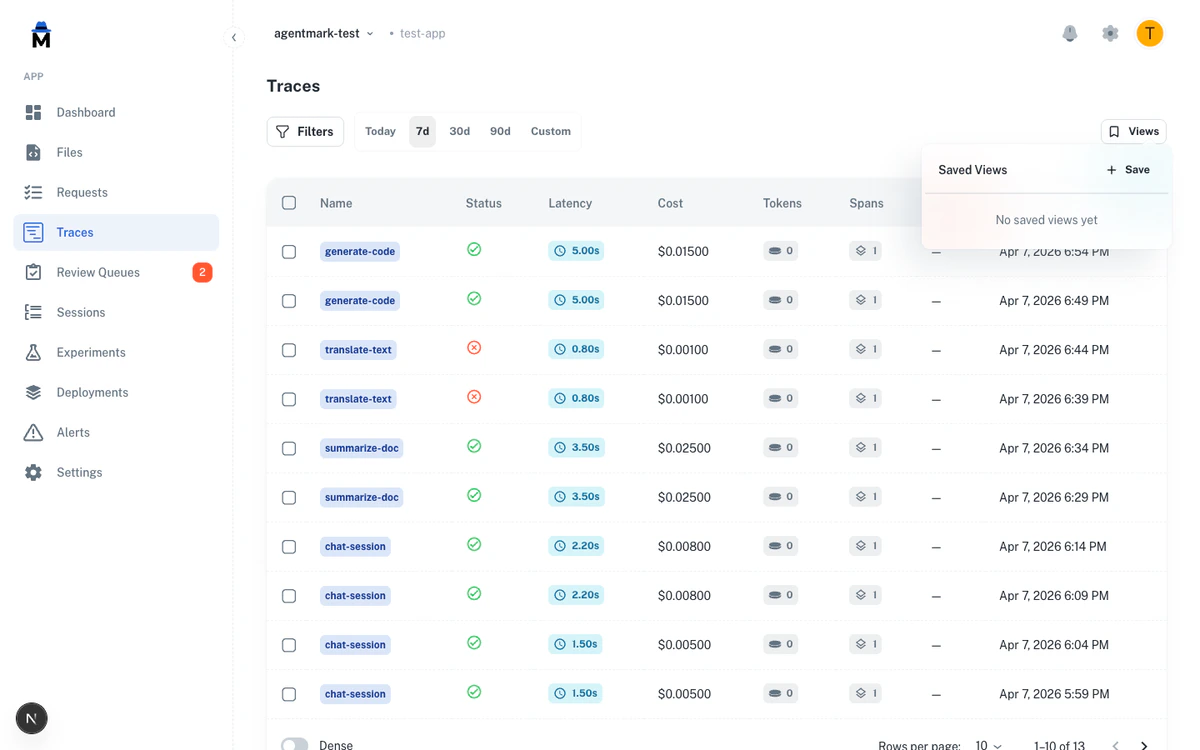
- Configure your desired filters, sort, and date range
- Click the Views dropdown
- Select Save current view
- Give the view a name
URL parameters
All filter state — including active filters, sort column, sort direction, and date range — is persisted in URL query parameters. This means you can:- Bookmark a filtered view for quick access
- Share a URL with teammates to show them the exact same filtered results
- Link from alerts, dashboards, or external tools directly to a filtered trace list
When you apply or remove filters, the URL updates automatically. Copy the URL from your browser’s address bar to share the current view.
Next steps
Traces and Logs
Understand trace details and span attributes
Sessions
Group related traces together
Metrics
Track usage, costs, and performance
Alerts
Get notified of critical issues
Have Questions?
We’re here to help! Choose the best way to reach us:
- Email us at hello@agentmark.co for support
- Schedule an Enterprise Demo to learn about our business solutions