

Overview
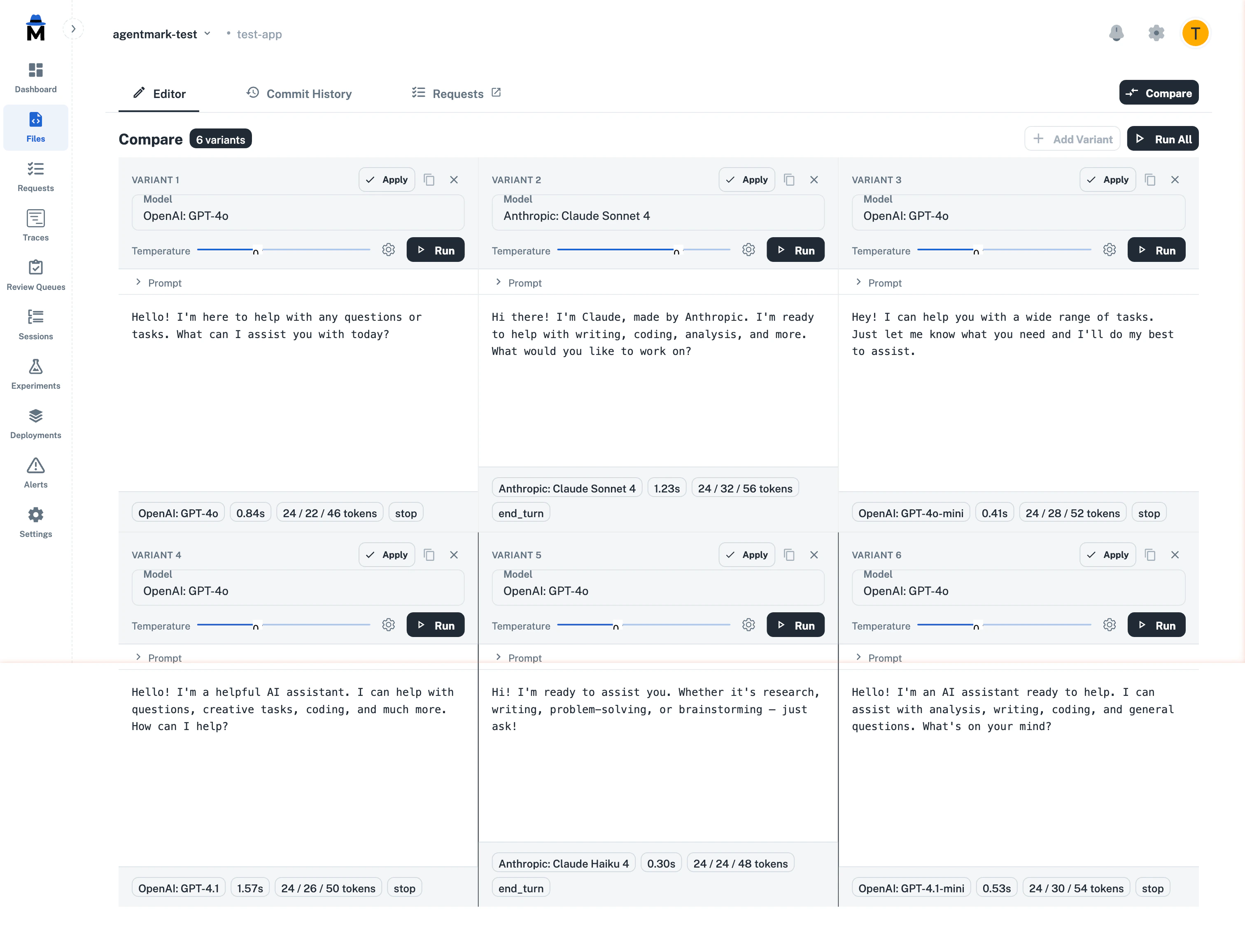
The Playground lets you run the same prompt across multiple models and parameter configurations side-by-side. Compare outputs, tweak prompt text per variant, and apply the winning configuration back to your editor — all without leaving the platform.Entering Comparison Mode
Open any prompt in the editor and click the Compare button in the top-right corner of the tab bar.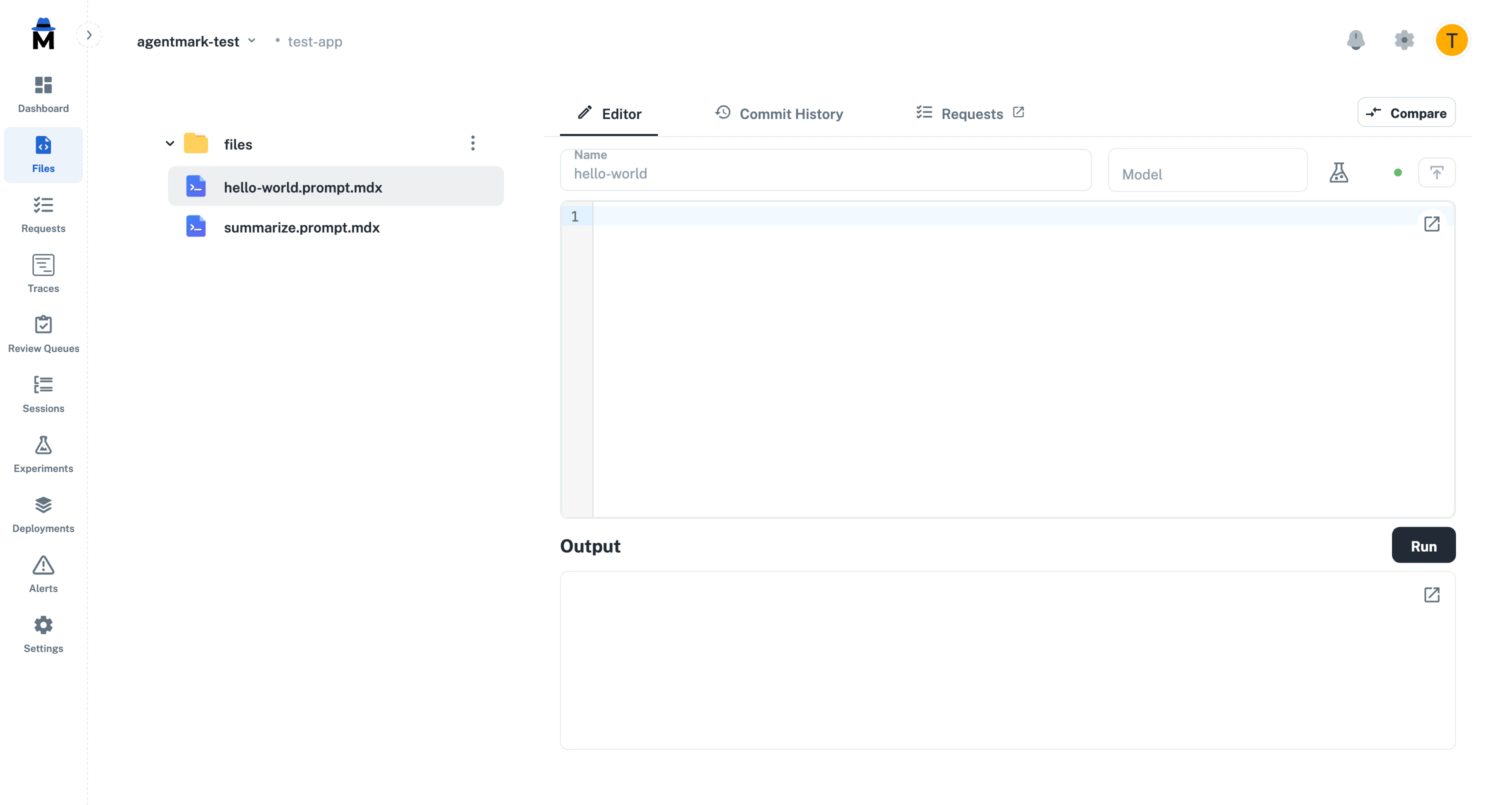
- The file tree collapses to give variants maximum horizontal space
- The navigation sidebar minimizes to icons
- Two variant panels appear side-by-side, ready for configuration
Configuring Variants
Each variant panel has its own independent configuration: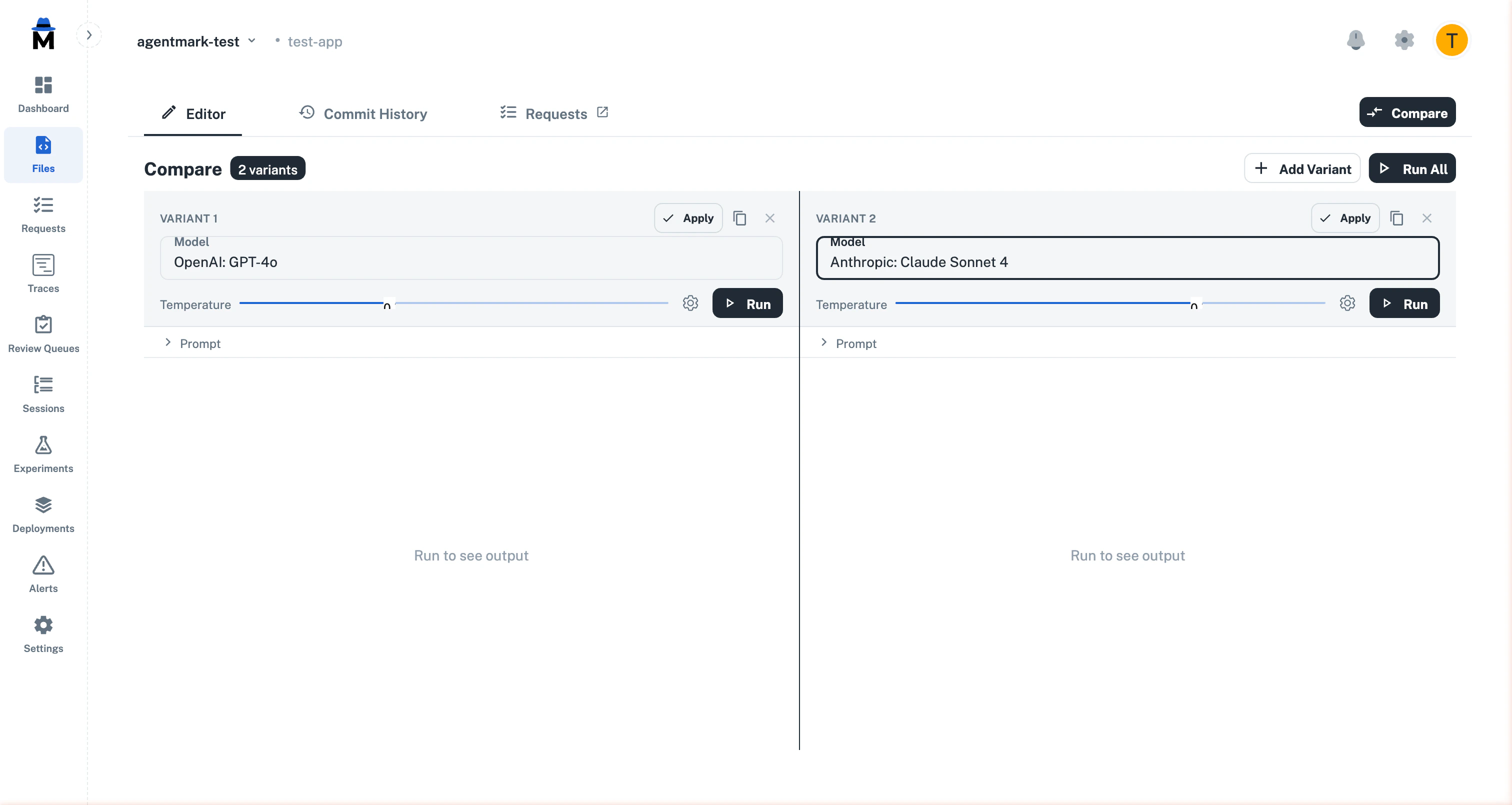
Model Selection
Select a different model for each variant from the Model dropdown. All models configured in your model schema are available.Temperature
The Temperature slider is inline for quick adjustments. Click the gear icon to access additional parameters (max tokens, top-p, etc.) in a popover.Prompt Override
Click the Prompt accordion on any variant to expand the prompt editor. Each variant starts with the base prompt text and can be edited independently.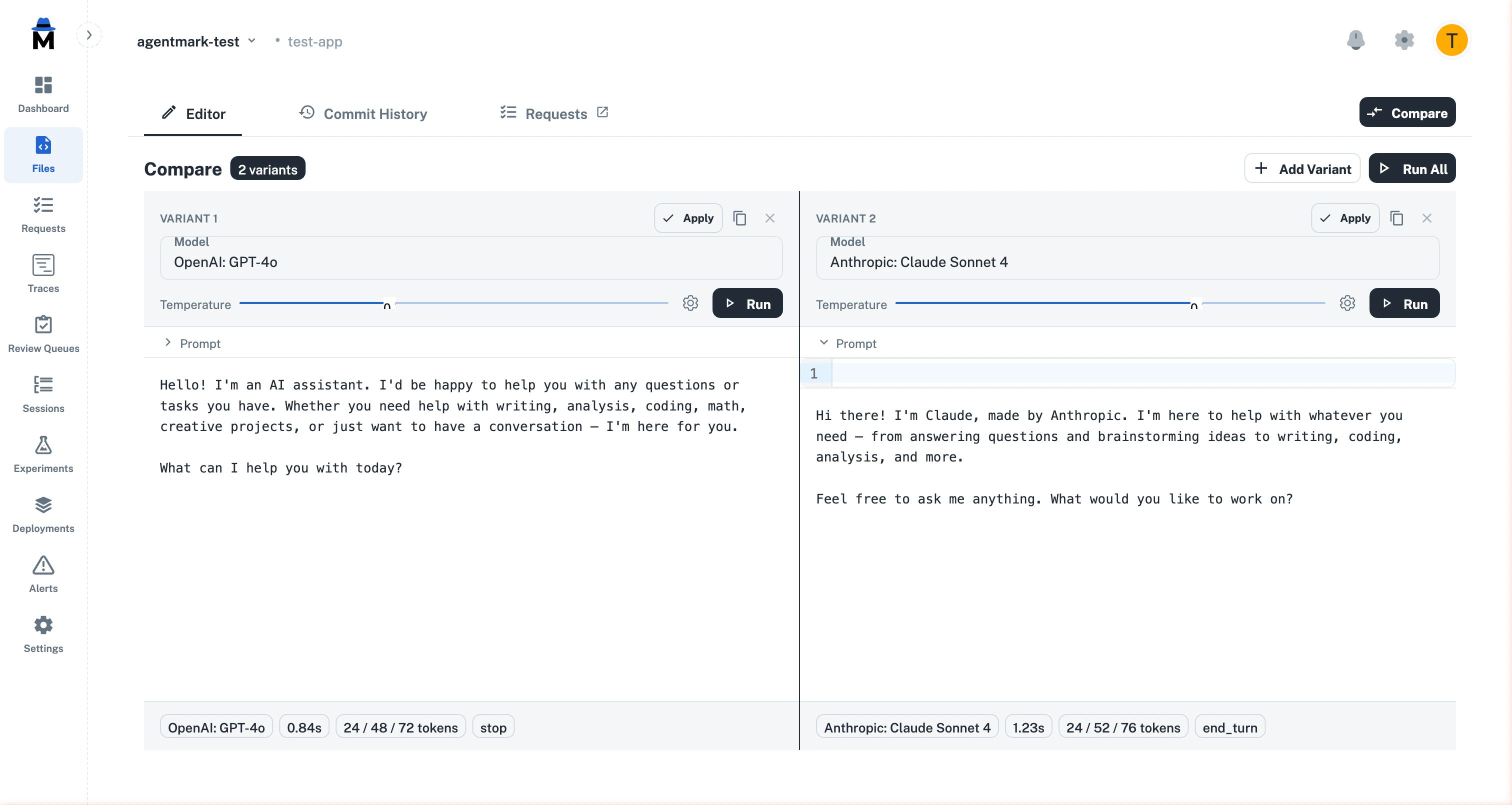
Running Variants
Run All
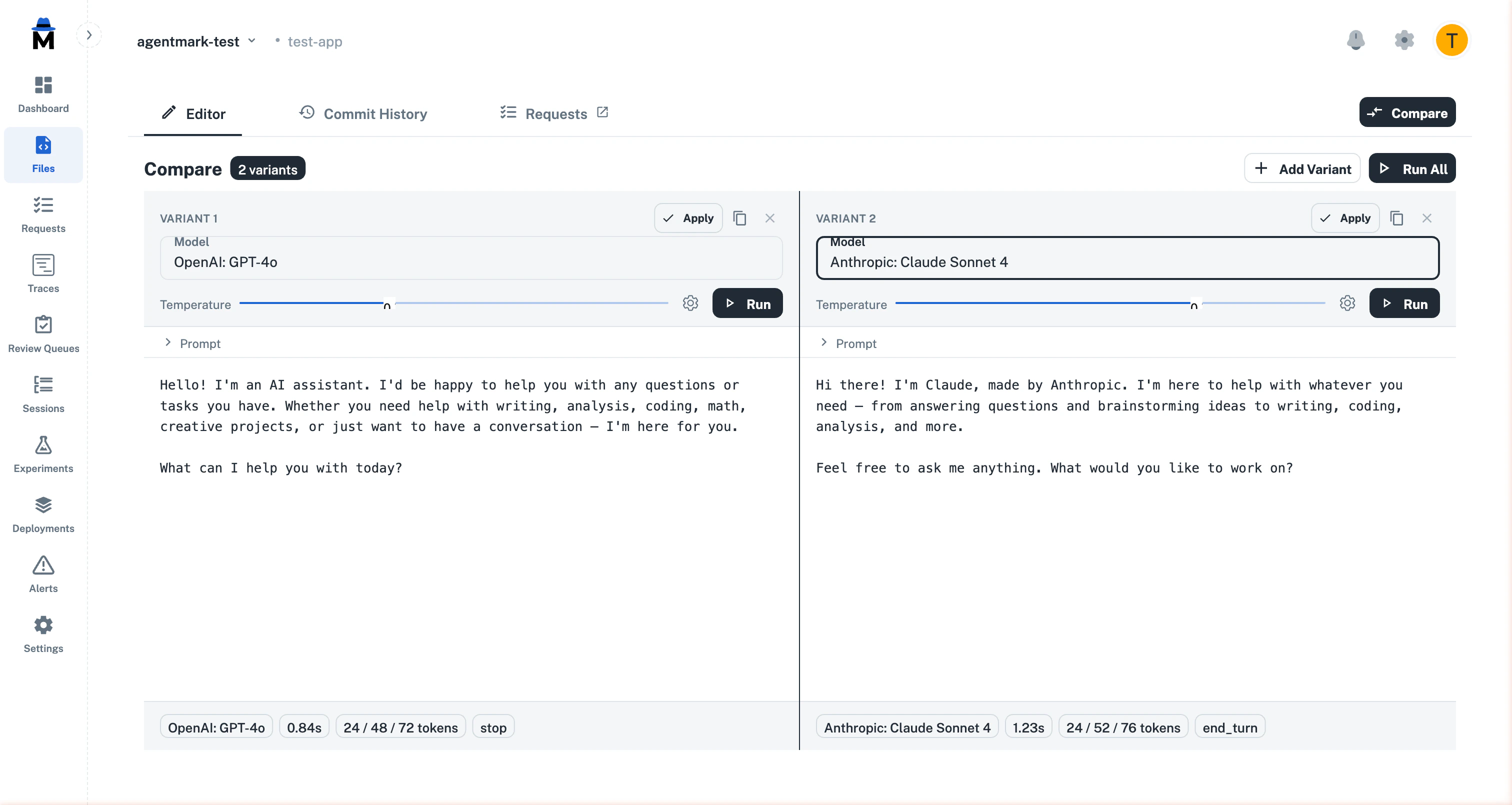
Click Run All in the toolbar to execute all variants simultaneously. Each variant streams its output independently — if one errors, the others continue.Run Single
Each variant has its own Run button for re-running just that variant without affecting others.Output and Metadata
After execution, each variant displays its output alongside metadata chips showing:- Model name — which model generated the response
- Latency — end-to-end response time
- Token usage — prompt / completion / total tokens
- Finish reason — why the model stopped (e.g.,
stop,end_turn)
Managing Variants
Add and Remove
Click + Add Variant to add panels (up to 6 maximum). Remove a variant with the X button in its header (minimum 2 required).Duplicate
Click the copy icon on any variant to duplicate its model, parameters, and prompt override into a new panel.Grid Layout
Variants are arranged in a 3-column grid:- 2-3 variants: single row
- 4-6 variants: wraps to two rows (3 per row)
Applying a Variant
Once you’ve found the best configuration, click the Apply button on that variant’s header. This writes the variant’s model, parameters, and prompt text back to the main editor — then exits comparison mode so you can review and publish.Keyboard Shortcuts
| Shortcut | Action |
|---|---|
| Click Compare button | Toggle comparison mode |
| Click Run All | Execute all variants in parallel |
Limitations
- Maximum 6 variants at a time
- Variables are shared across all variants (per-variant variables are not yet supported)
- No dataset integration — for systematic evaluation across many inputs, use Experiments
- Ephemeral state — variant configurations are not persisted across page reloads
What’s Next
- Create a Prompt — set up your base prompt before comparing
- Version Control — publish the winning variant as a new version
- Experiments — run prompts against datasets for systematic evaluation
Have Questions?
We’re here to help! Choose the best way to reach us:
- Email us at hello@agentmark.co for support
- Schedule an Enterprise Demo to learn about our business solutions