

- Cloud
- Local
1. Create a prompt
Open the create menu in the Dashboard to start a new prompt.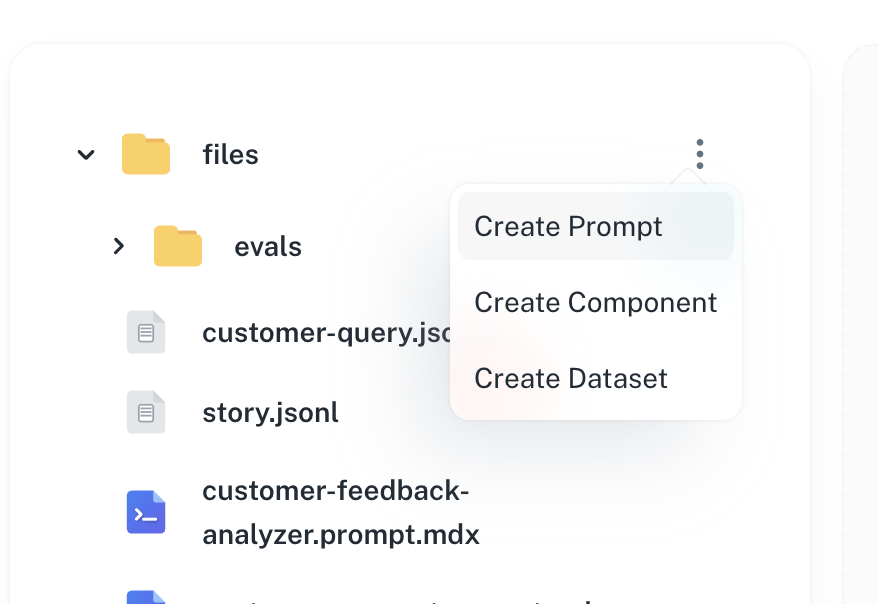
2. Name your prompt
Give your prompt a descriptive name and choose the generation type (Text, Object, Image, or Speech).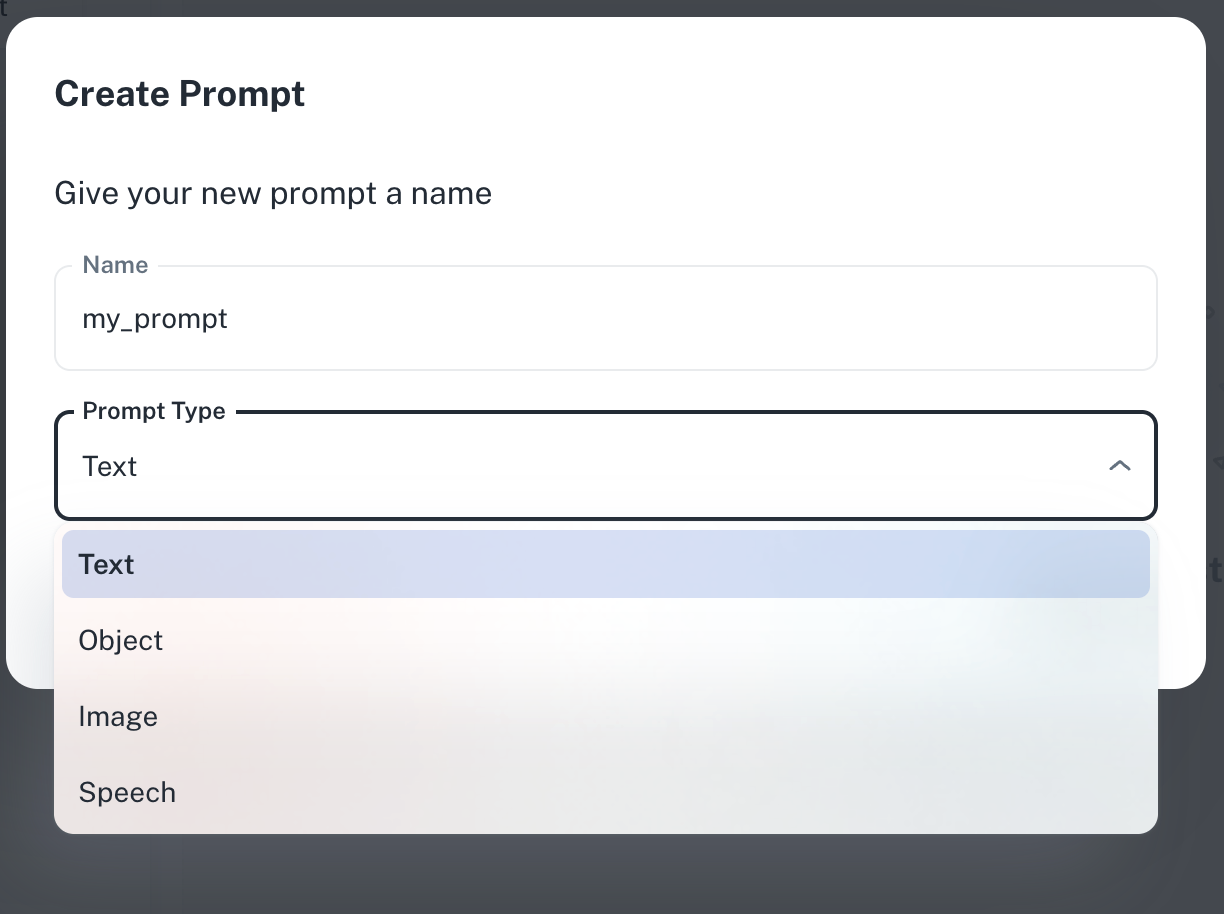
agentmark/) and a generation type (Text, Object, Image, or Speech), which determines the frontmatter config key and supported message tags.3. Write your prompt
Select your model and write your prompt using message tags.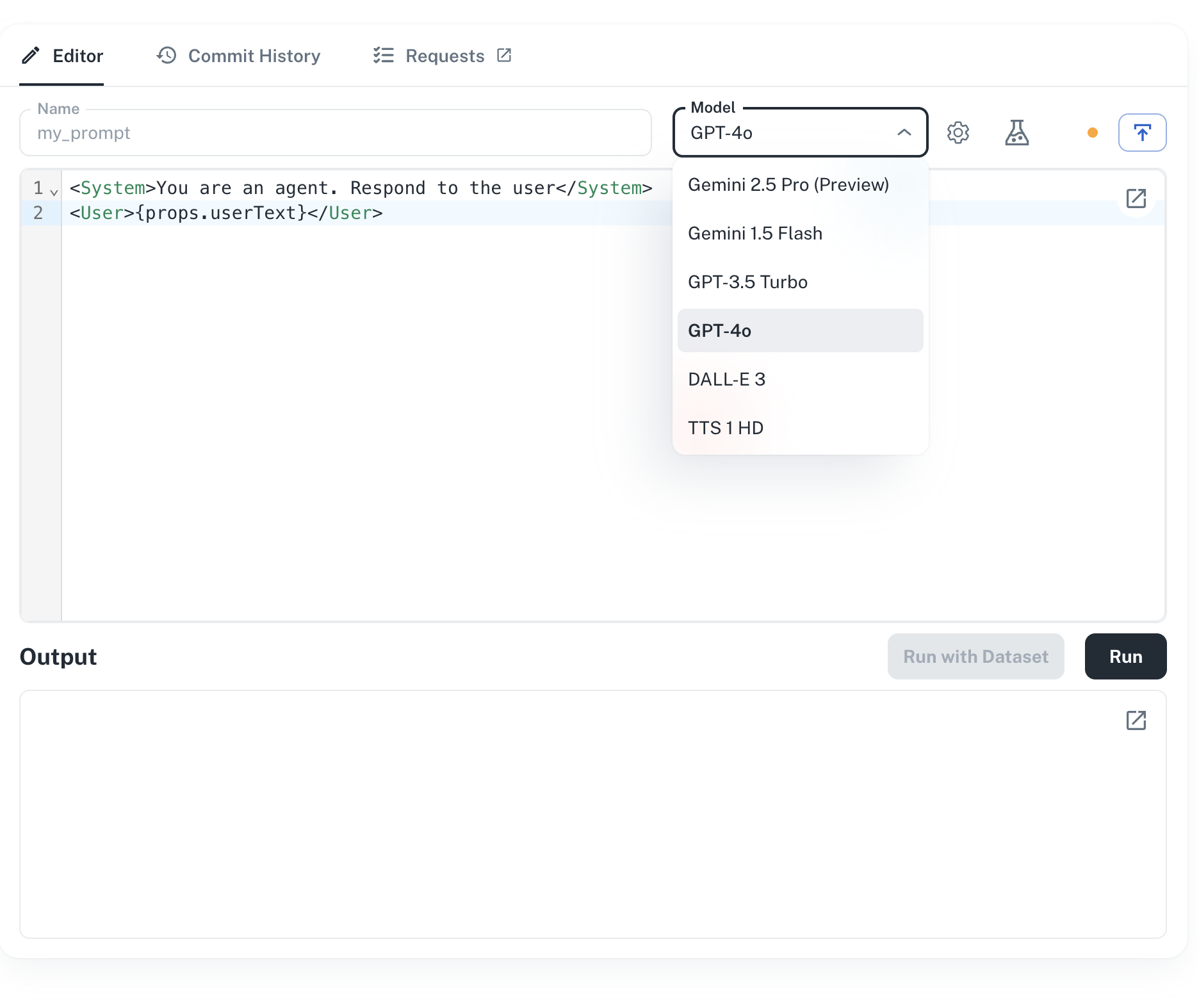
<System>, <User>, <Assistant>). Syntax highlighting and inline validation help catch frontmatter or tag errors as you type.4. Run your prompt
Add your input variables and run the prompt to see results.Fill the input-variable fields (any{props.foo} references in your prompt), then click Run to execute the prompt. The output streams into the right panel in real time.5. Publish
Publish to save your changes and make them available to your application.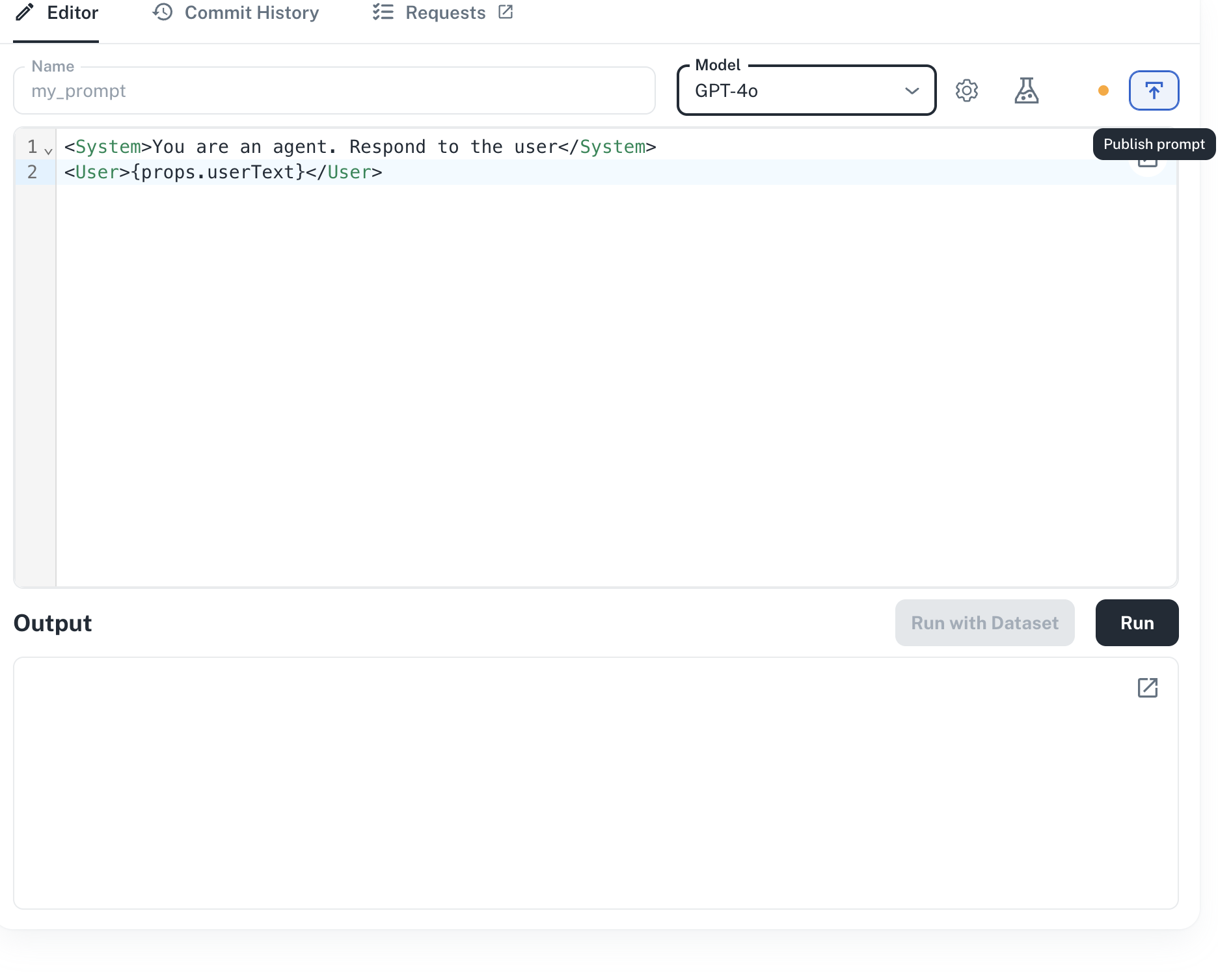
Next steps
Running prompts
Execute prompts from your application via SDK
Playground
Compare models and prompts side-by-side
Generation types
Text, object, image, and speech output
TemplateDX syntax
Variables, conditionals, loops, and components
Have questions?
Reach out any time:
- Email the team at hello@agentmark.co for support
- Schedule an Enterprise Demo to learn about AgentMark’s business solutions