Documentation Index

Fetch the complete documentation index at: https://docs.agentmark.co/llms.txt

Use this file to discover all available pages before exploring further.

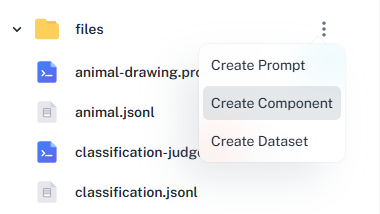
AgentMark supports reusable components to help you maintain consistent prompting patterns across your prompts. You can create components in the Dashboard or locally as files. Create component dialog in the Dashboard The Create Component dialog prompts for the component name and drops a new .mdx file into the selected folder. After you edit and publish it, it’s available for import in any prompt on this app.

Create a component in the Dashboard

  1. Open the Files tab for your app.
  2. Click the kebab menu (⋮) next to the folder where the component should live.
  3. Select Create component, give it a name, and click Create.
  4. Edit the component in the visual editor, then click Publish.

Create a component locally

Create components locally as .mdx files in your agentmark/ directory:
agentmark/
  ├── components/
   ├── math-instructions.mdx
   └── language-instructions.md
  └── prompts/
      └── example.prompt.mdx
Add a new .mdx (or .md) file under components/. The file is picked up on save — if your app is synced to Cloud, the next git push makes it available to your deployed handler; in Local mode, agentmark dev reads it directly from disk.

Using components

Import and use components in your prompts:
example.prompt.mdx
import MathInstructions from '../components/math-instructions.mdx';

<System>
  You are a math tutor.
  <MathInstructions level={props.difficulty} />
</System>
Component example:
math-instructions.mdx
You are a patient and knowledgeable math tutor. Follow these guidelines:

<If condition={props.level === "basic"}>
  - Explain concepts using simple, everyday examples
  - Break down problems into very small steps
  - Use visual representations when possible
  - Avoid complex mathematical notation
</If>

<If condition={props.level === "intermediate"}>
  - Provide detailed step-by-step solutions
  - Introduce formal mathematical notation gradually
  - Explain the reasoning behind each step
  - Include relevant formulas with explanations
</If>

<If condition={props.level === "advanced"}>
  - Use formal mathematical notation
  - Include theoretical foundations
  - Reference related concepts and theorems
  - Provide rigorous mathematical proofs
</If>
In the calling prompt, the parent passes level as a prop; the component reads it as props.level. Component props are scoped to the component — they don’t collide with the parent prompt’s props.

Learn more

For the full component feature reference — props, conditional rendering, plain markdown imports, and composition — see TemplateDX Components.

Have Questions?

We’re here to help! Choose the best way to reach us: