

Cloud feature. The Playground is available in the AgentMark Dashboard.
Compare models and prompts side-by-side
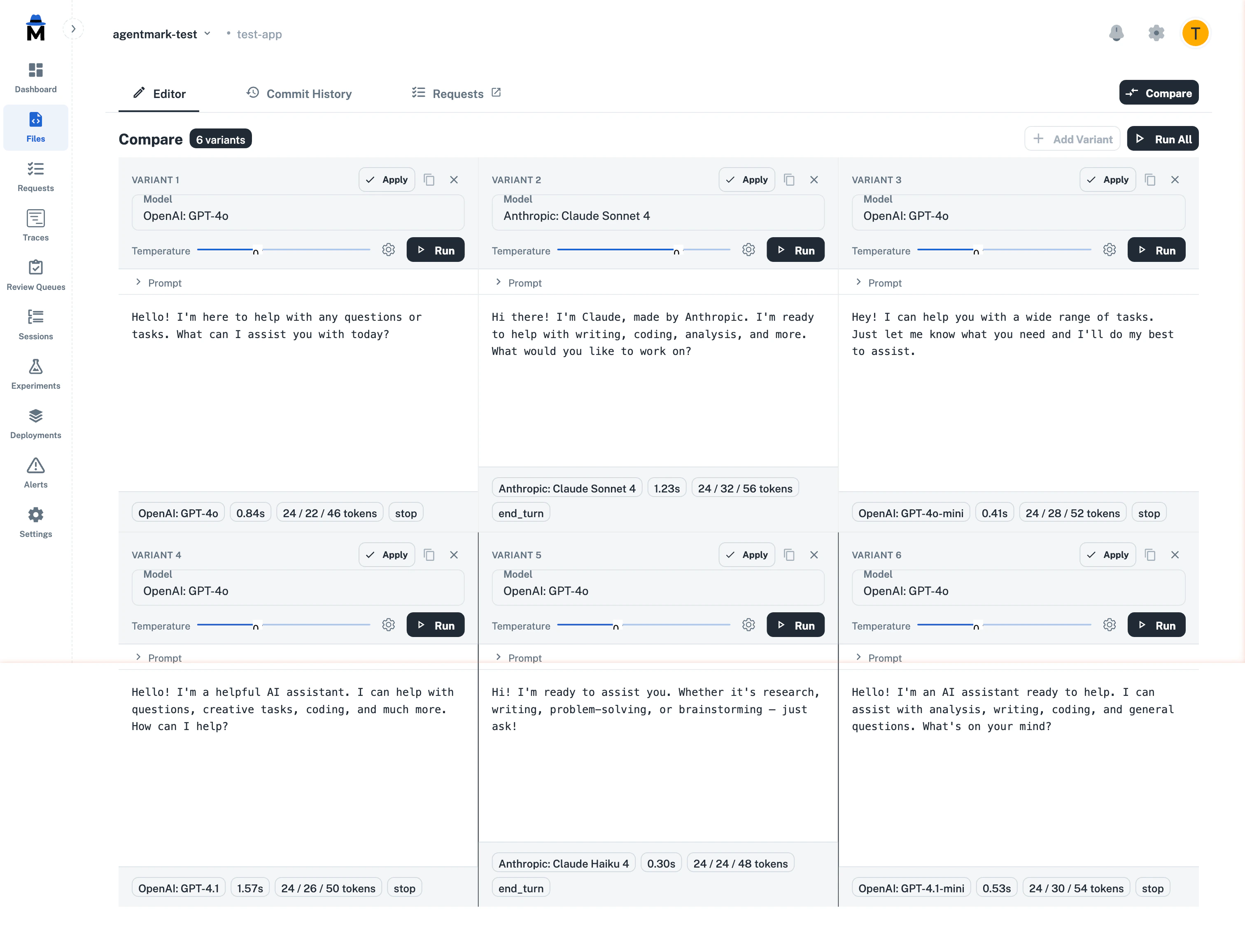
The Playground runs one prompt across several models and parameter sets at once. Compare the outputs, edit the prompt text per variant, and apply the configuration you pick back to your editor.Entering comparison mode
Open any prompt in the editor and click the Compare button in the top-right corner of the tab bar.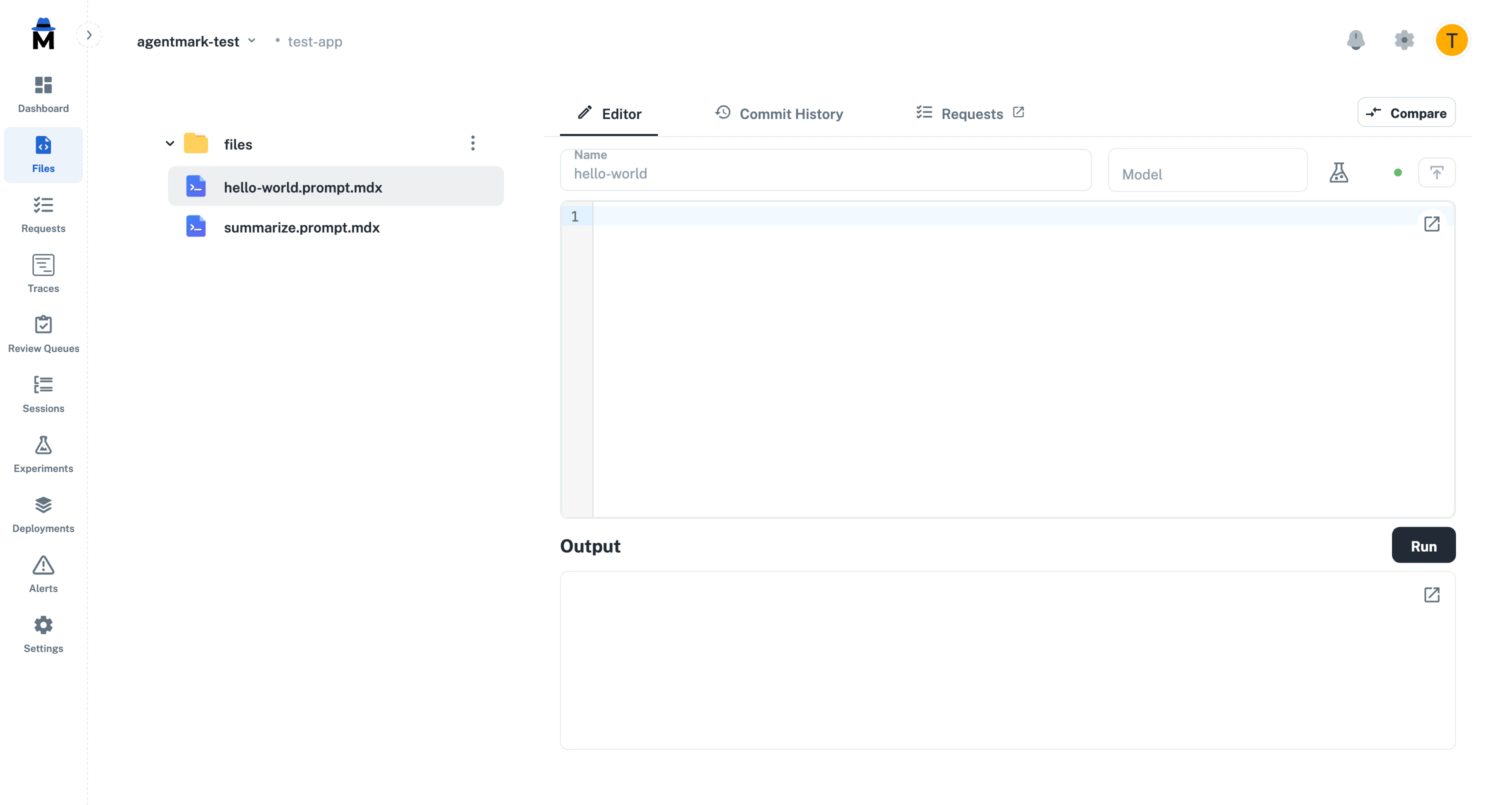
- The file tree collapses to give variants maximum horizontal space
- The navigation sidebar minimizes to icons
- Two variant panels appear side-by-side, ready for configuration
Configuring variants
Each variant panel has its own independent configuration: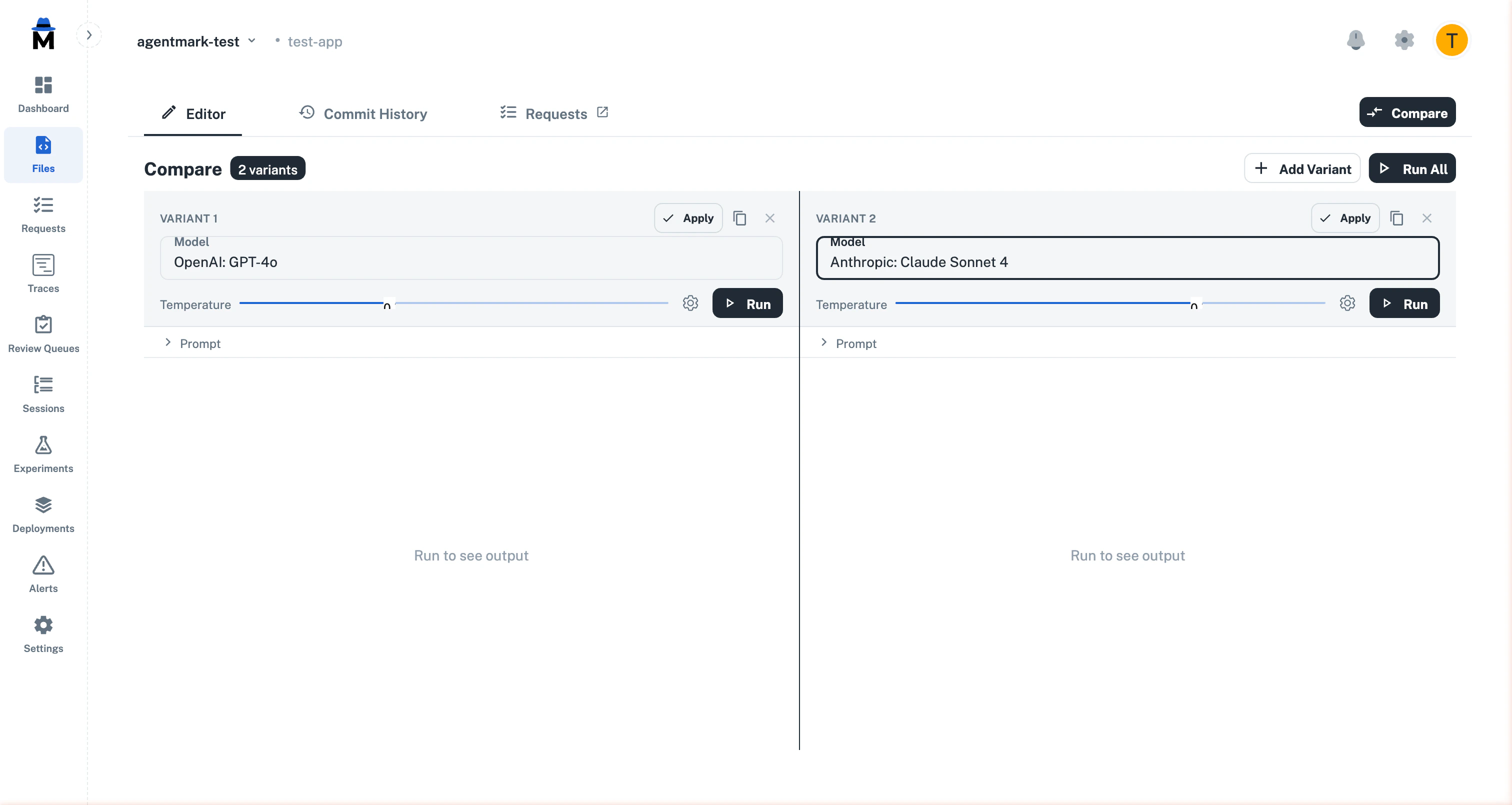
Model selection
Select a different model for each variant from the Model dropdown. All models configured in your model schema are available.Temperature
The Temperature slider is inline for quick adjustments. Click the gear icon to open the Model Settings dialog for max tokens, top-p, and other settings.Prompt override
Click the Prompt accordion on any variant to expand the prompt editor. Each variant starts with the base prompt text, and you can edit it independently.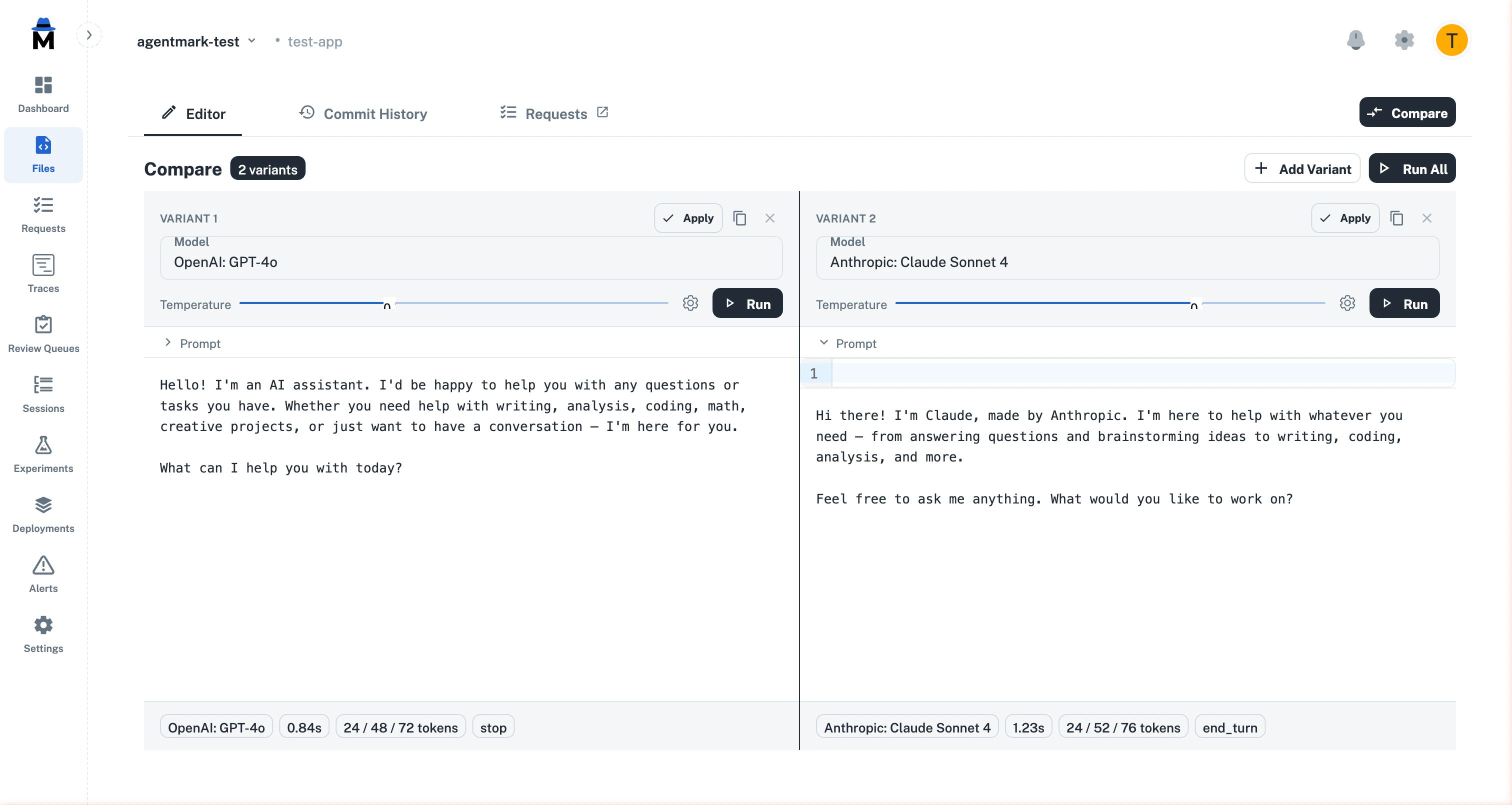
Running variants
Run all
Click Run All in the toolbar to execute all variants simultaneously. Each variant streams its output independently, so if one errors, the others continue.Run single
Each variant has its own Run button for re-running just that variant without affecting others.Output and metadata
After execution, each variant displays its output alongside metadata chips showing:- Model name: which model generated the response
- Latency: end-to-end response time
- Token usage: prompt / completion / total tokens
- Finish reason: why the model stopped (for example,
stop,length)
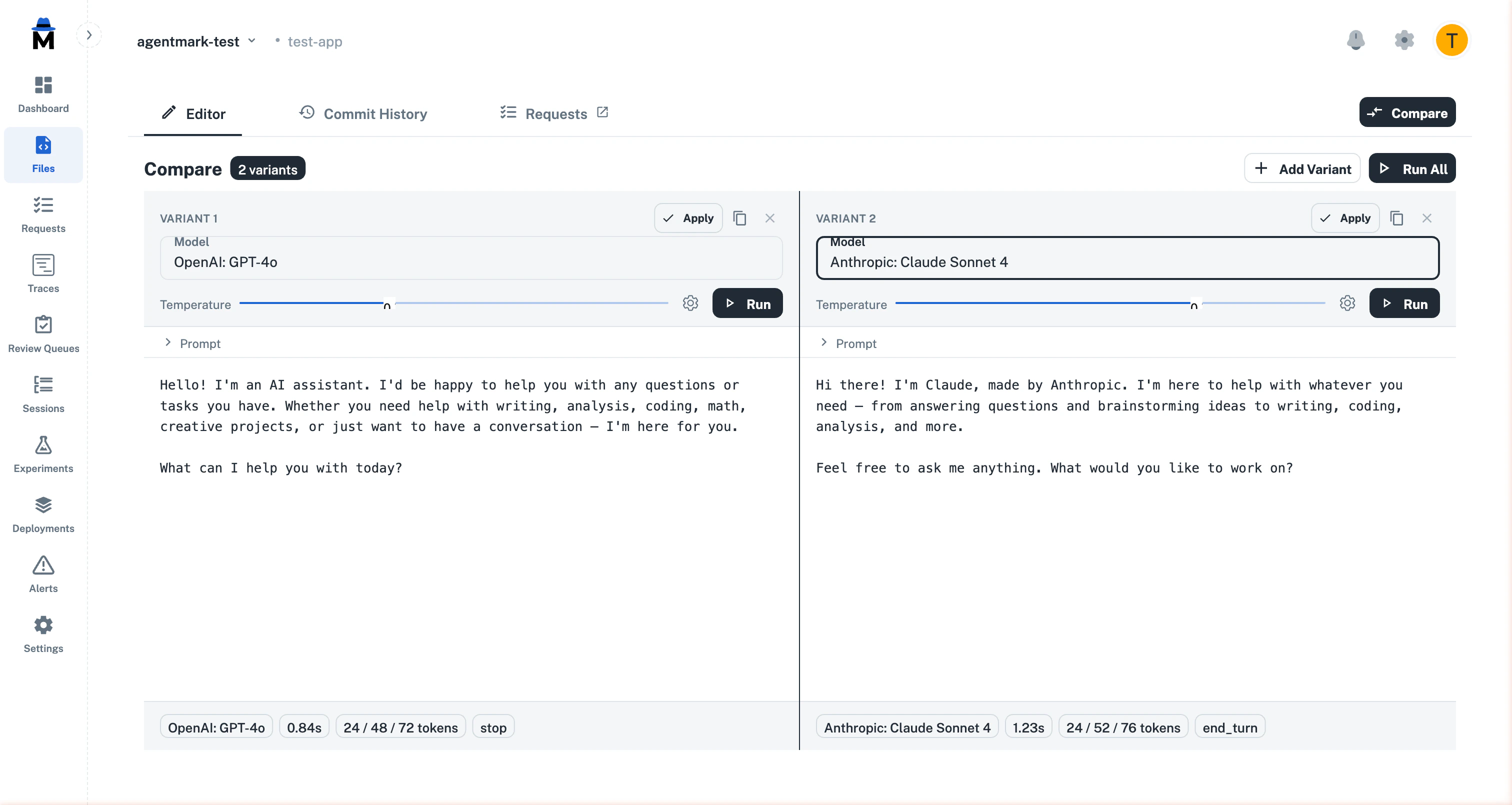
3.45s), a combined prompt / completion / total tokens chip, and the finish reason.
Managing variants
Add and remove
Click Add Variant to add panels (up to 6 maximum). Remove a variant with the X button in its header (minimum 2 required).Duplicate
Click the copy icon on any variant to duplicate its model, parameters, and prompt override into a new panel.Grid layout
AgentMark arranges variants in a 3-column grid:- 2-3 variants: single row
- 4-6 variants: wraps to two rows (3 per row)
Applying a variant
Once you’ve found the best configuration, click the Apply button on that variant’s header. This writes the variant’s model, parameters, and prompt text back to the main editor, then exits comparison mode so you can review and publish.Limitations
- Maximum 6 variants at a time
- All variants share variables
- No dataset integration: for systematic evaluation across many inputs, use Experiments
- Ephemeral state: variant configurations aren’t persisted across page reloads
What’s next
- Create a prompt: set up your base prompt before comparing
- Version control: publish the winning variant as a new version
- Experiments: run prompts against datasets for systematic evaluation
Have questions?
Reach out any time:
- Email the team at hello@agentmark.co for support
- Schedule an Enterprise Demo to learn about AgentMark’s business solutions