

API keys authenticate every request to the AgentMark Gateway. Each key is scoped to a single app and carries either a preset role (SDK, Read-Only, Full Access) or a custom permission set you assemble yourself. The gateway checks a key’s permissions on every request and returnsDocumentation Index
Fetch the complete documentation index at: https://docs.agentmark.co/llms.txt
Use this file to discover all available pages before exploring further.
403 Forbidden when a key lacks the required permission.
For the header format and the full endpoint-to-permission mapping, see Authentication. For the permission catalog and role definitions, see Users and access control.
Locate the API keys settings
Open the AgentMark Dashboard, switch to the app you want to scope the key to (the app shown in the breadcrumb at the top), then navigate to Settings → API keys.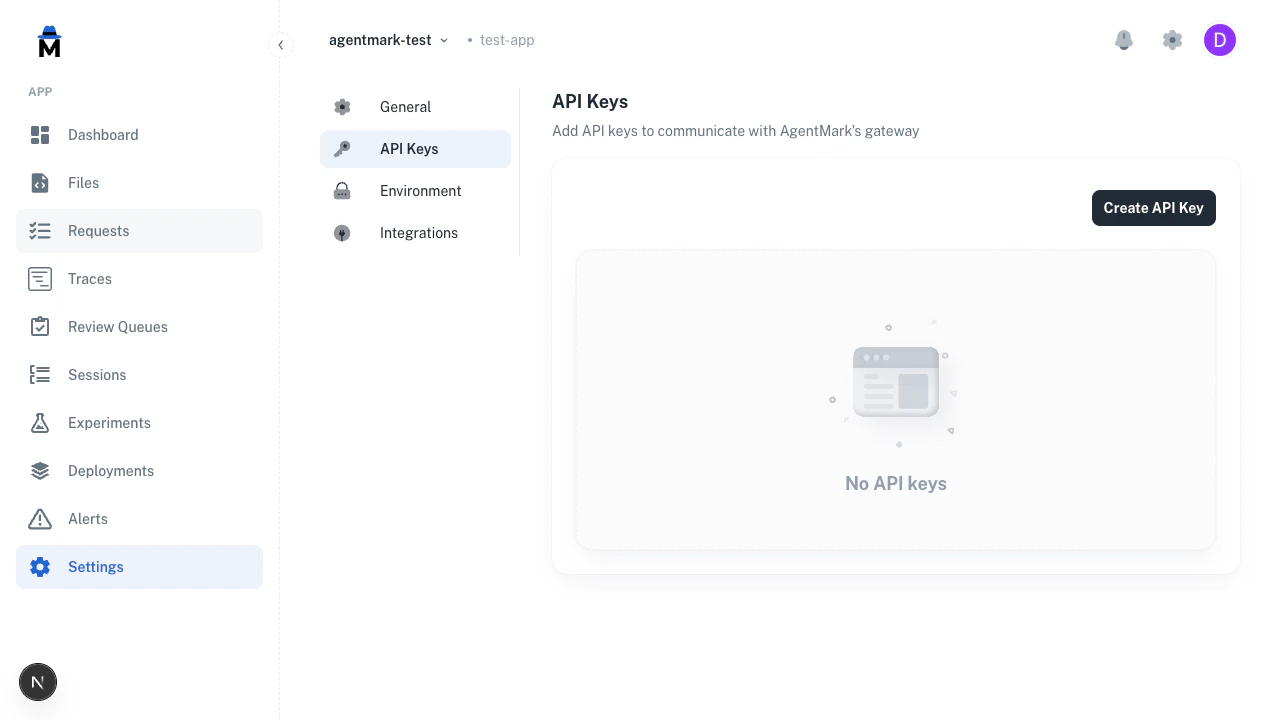
Keys are scoped to the app shown in the breadcrumb. A key created here cannot access any other app’s traces, templates, or datasets.
Create an API key
- Click Create API key.
- Enter a Name (used for identification in the list; must be unique within the app).
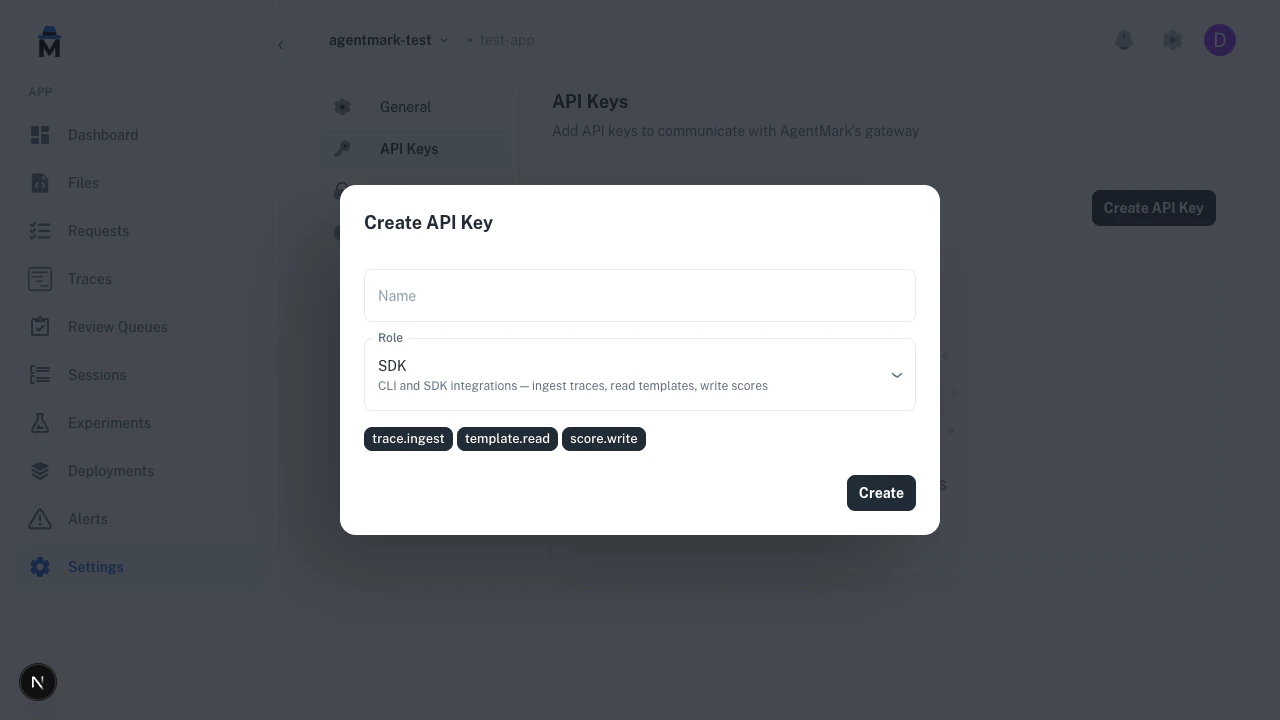
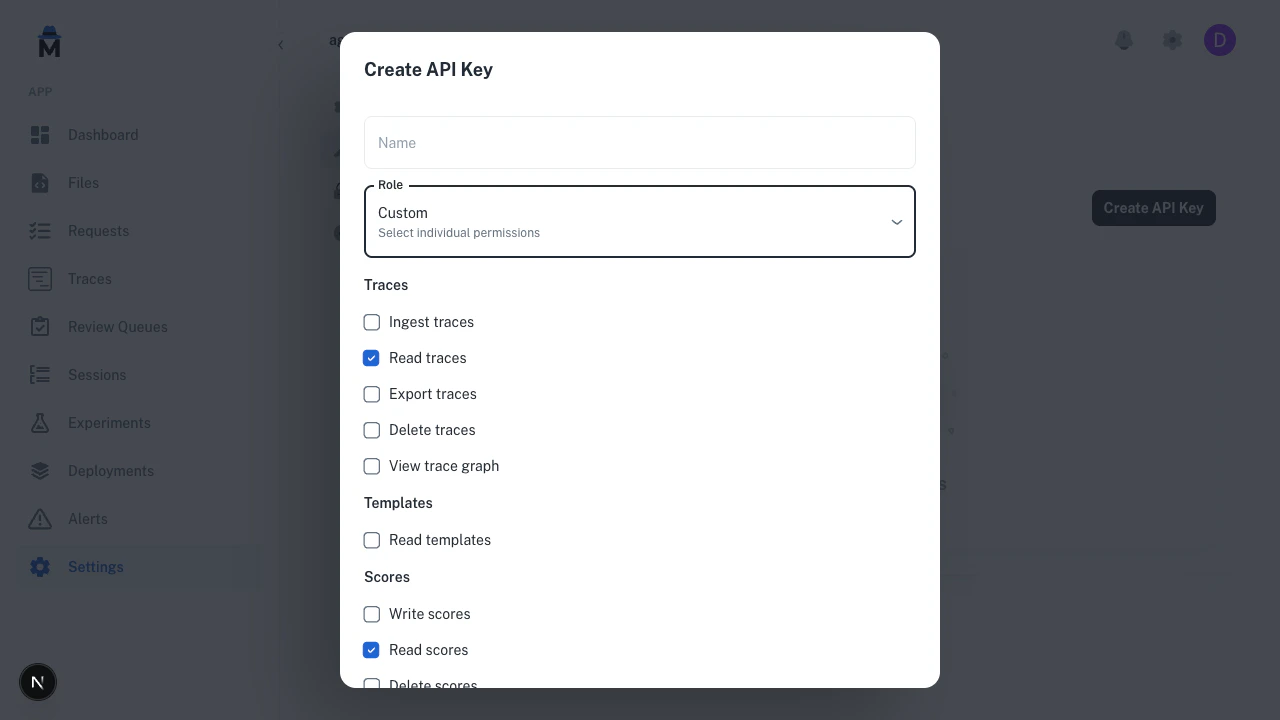
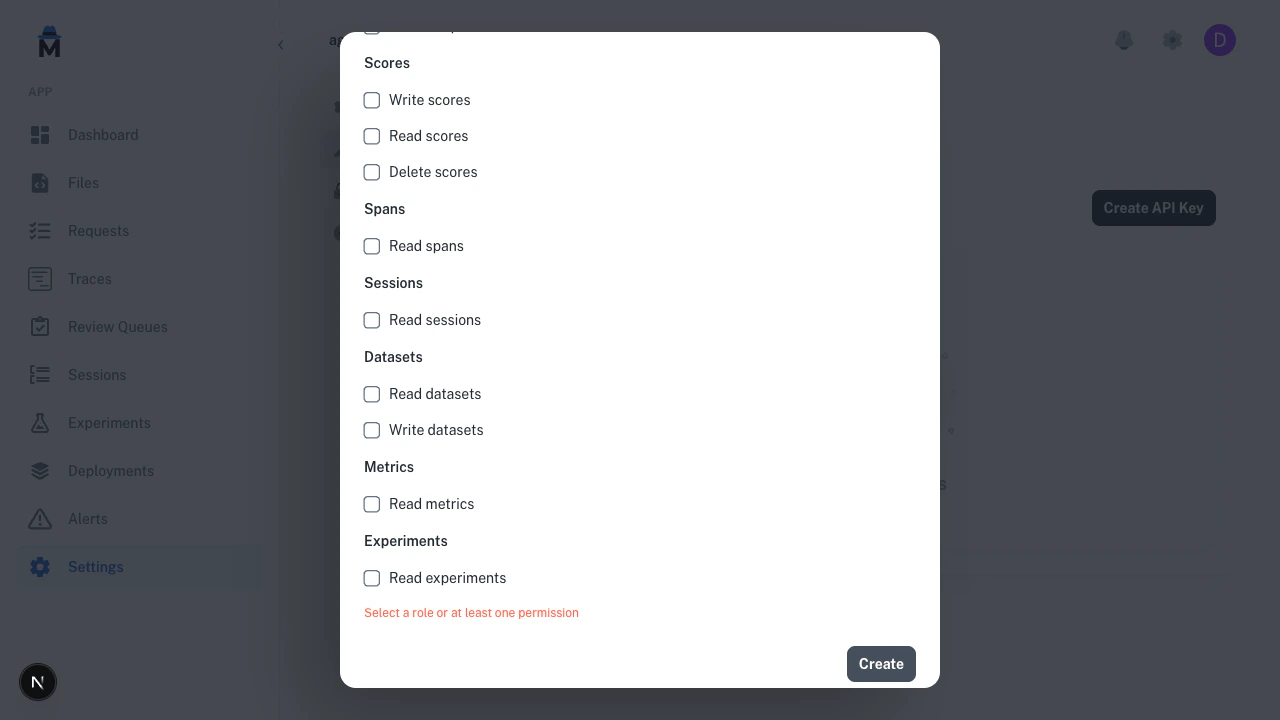
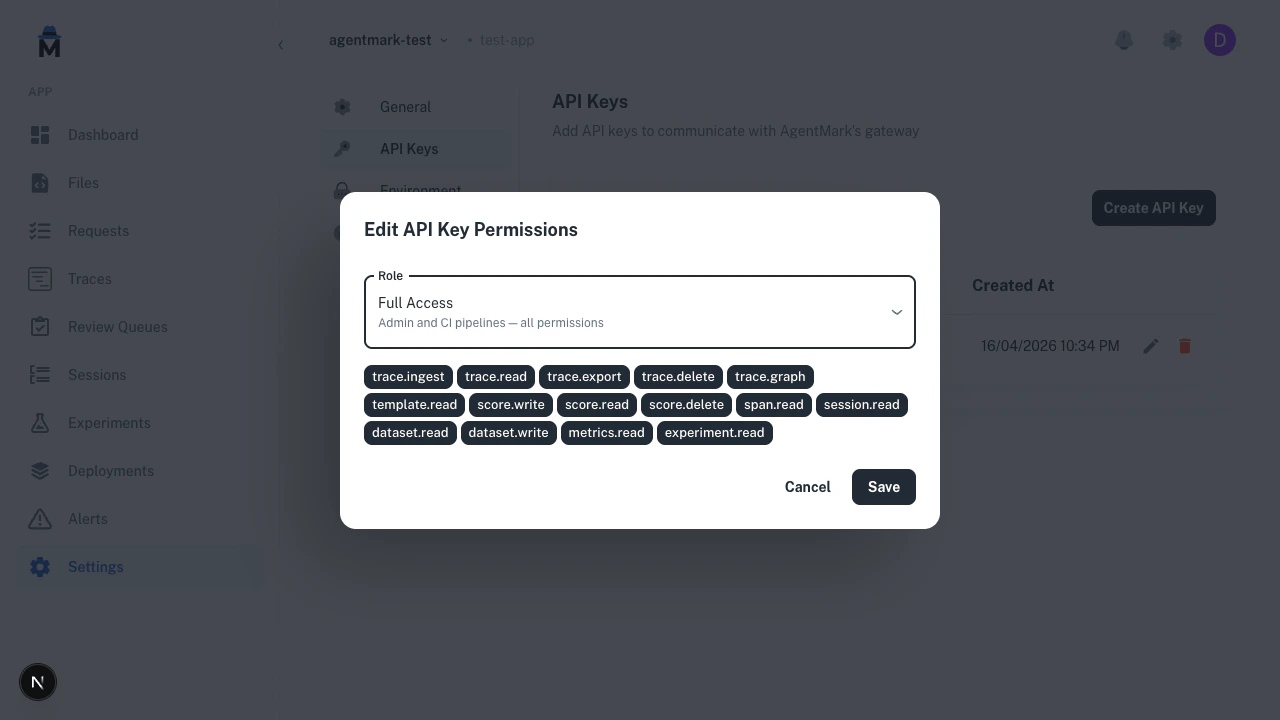
- Select a Role or choose Custom to pick permissions individually.
- Click Create.
Role presets
Three presets cover the common integration patterns: SDK —trace.write, template.read, score.write. CLI and SDK integrations: ingest traces, read templates, write scores.
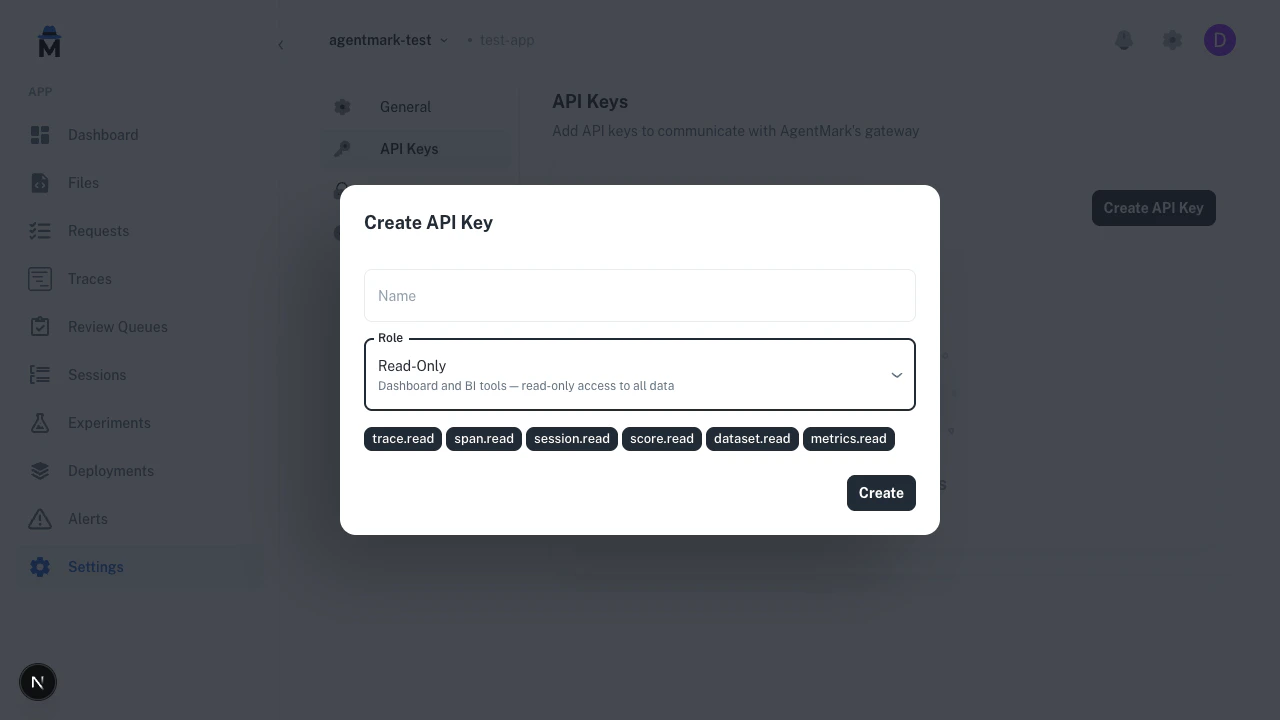
trace.read, span.read, session.read, score.read, score_config.read, dataset.read, metrics.read, deployment.read, environment.read, alert.read, slack_integration.read, app.read. Dashboard and BI tools: read-only access to all data.
Custom permissions
Select Custom to build a permission set from scratch. Permissions are grouped by resource (Traces, Templates, Scores, Spans, Sessions, Datasets, Metrics, Experiments) so you can mix and match — for example,trace.read + score.write for a scoring worker, or dataset.write only for a CI job that uploads eval rows.
Copy the key
After the key is created, the Dashboard shows the key value once. Copy it now — it cannot be retrieved later.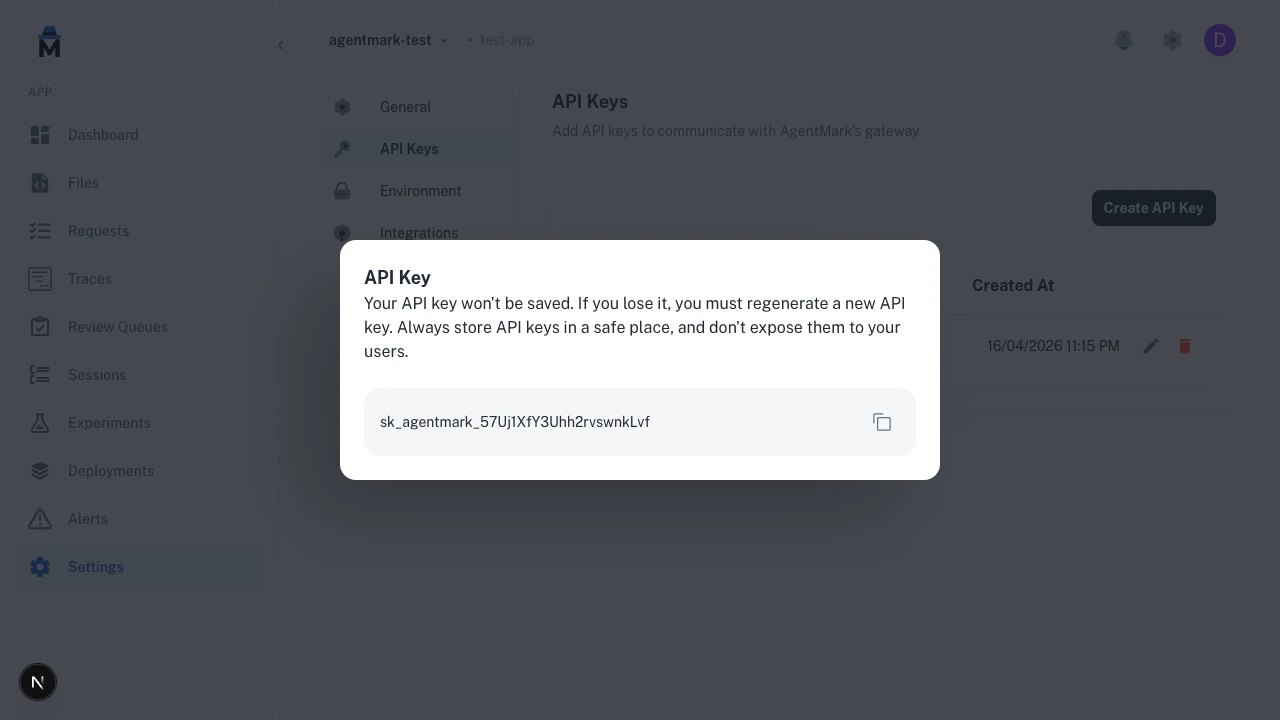
Edit key permissions
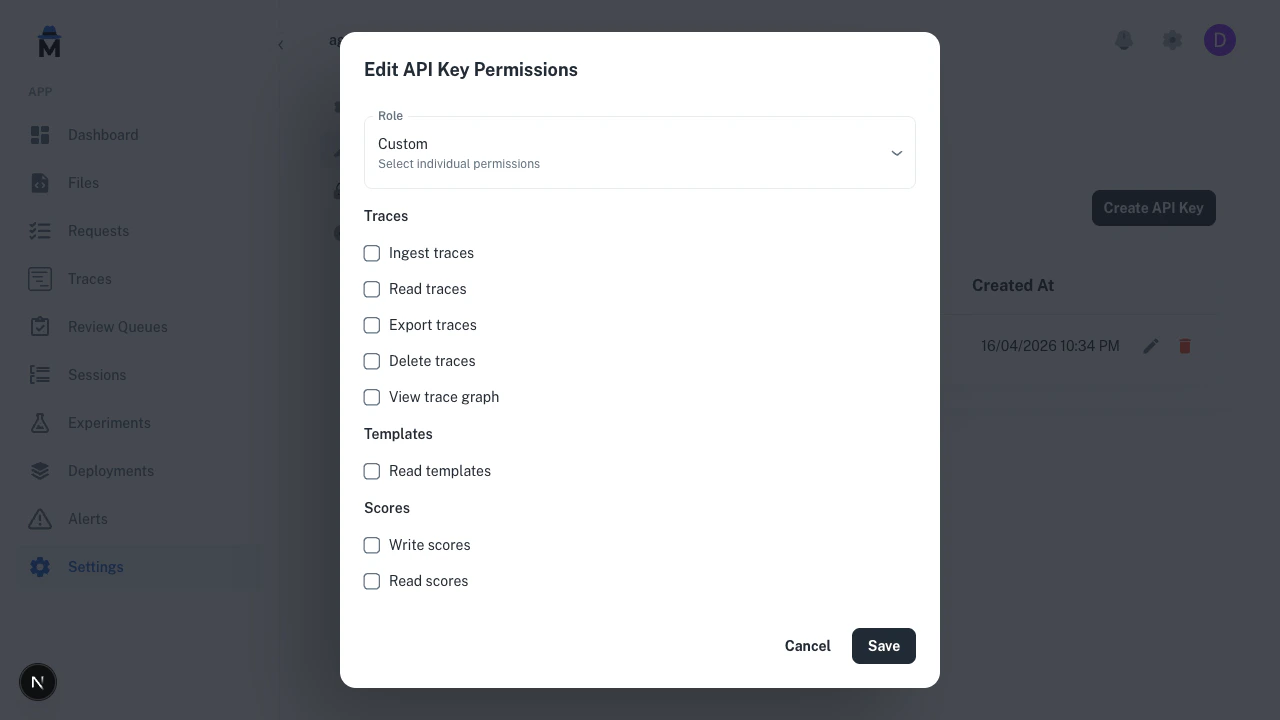
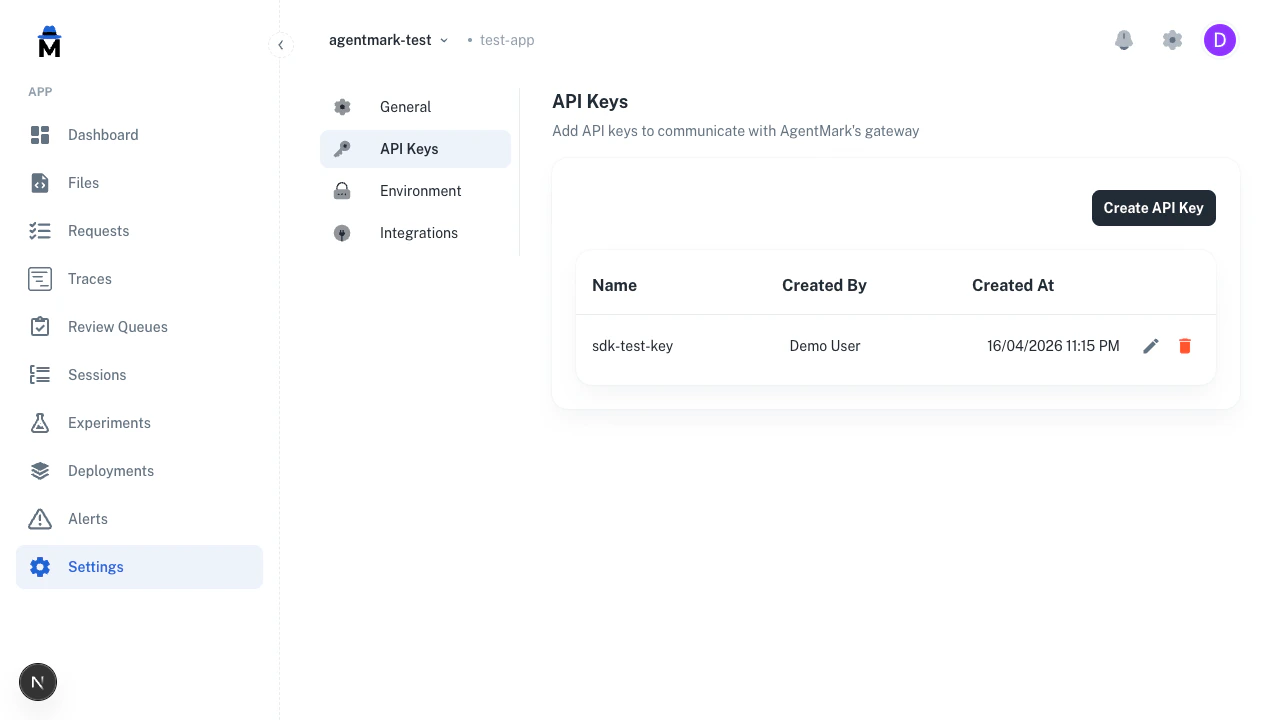
To change a key’s permissions, click the pencil icon next to the key in the list.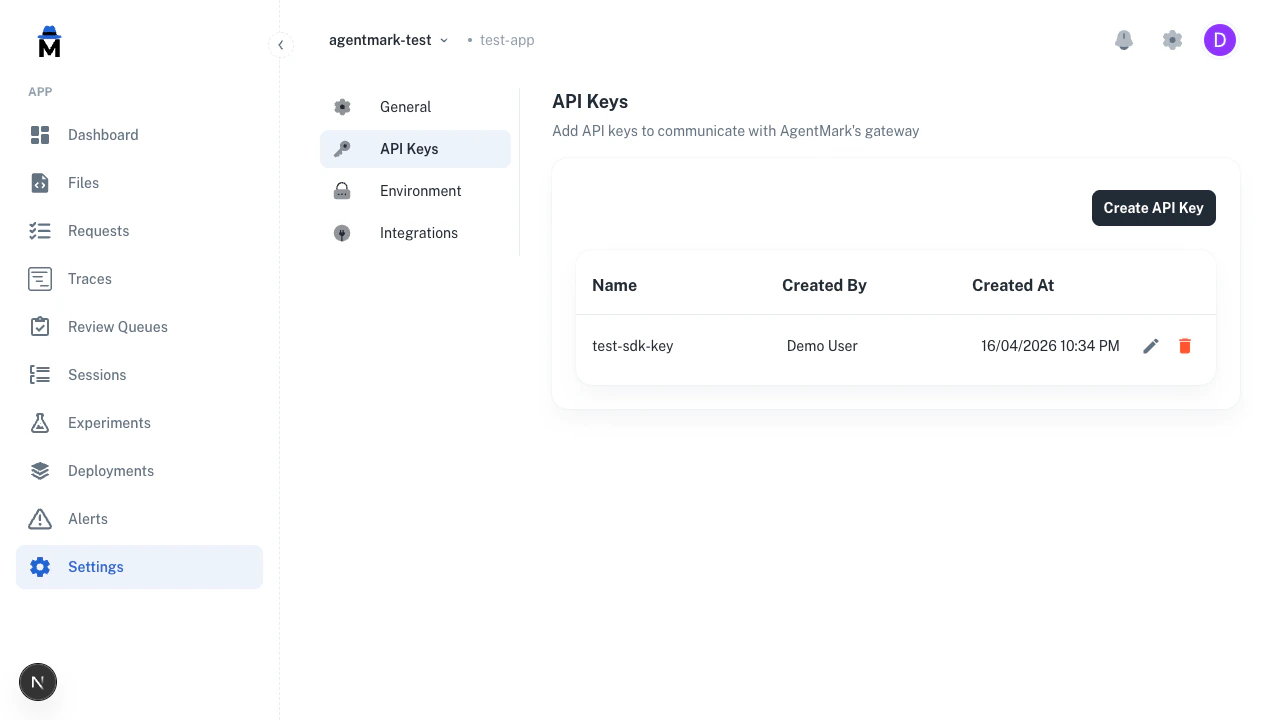
Delete a key
Click the red trash icon next to a key and confirm the deletion.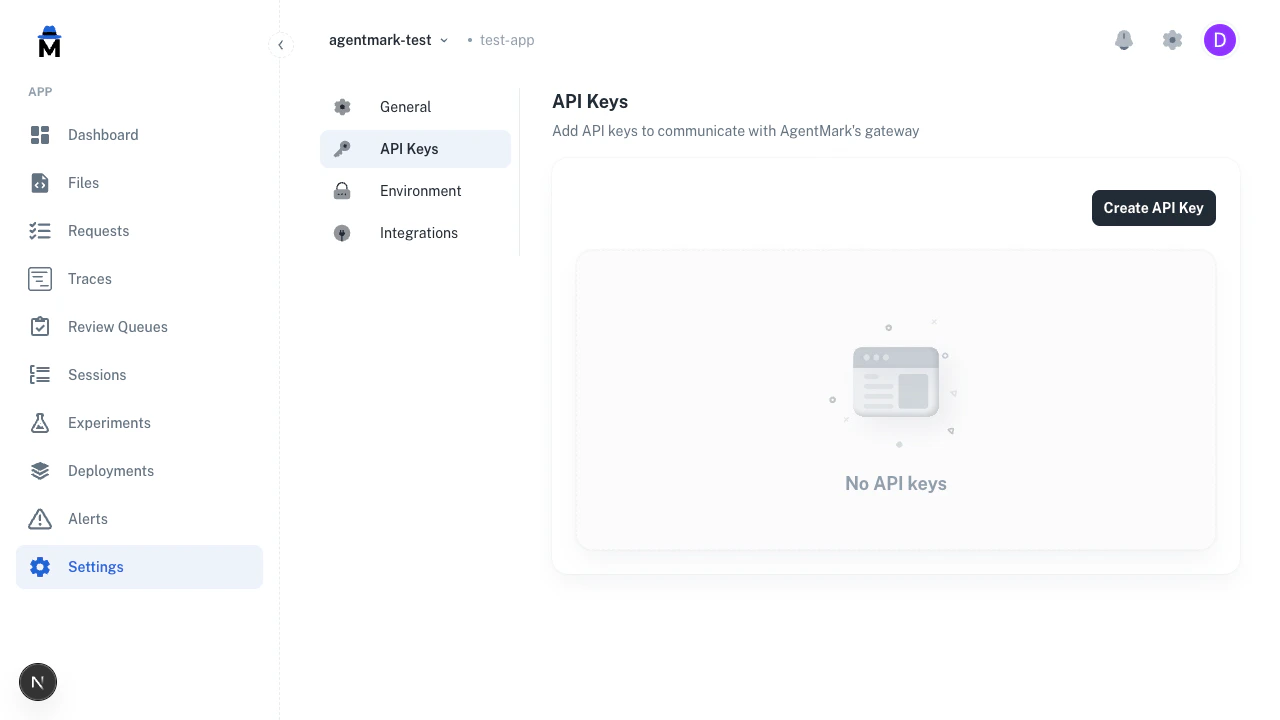
Rotate a key
To rotate a key without downtime:- Create a new key with the same permissions.
- Copy the new value and update
AGENTMARK_API_KEYin your deployment (or secrets manager). - Confirm your application is using the new key (check traces or logs for the expected activity).
- Delete the old key from the Dashboard.
401 gap — the old key keeps working until you delete it.
Related reading
- Authentication — request headers, endpoint permissions, error codes
- Users and access control — permission catalog and role definitions
- Security — how keys are stored and rate-limited
Have Questions?
We’re here to help! Choose the best way to reach us:
- Email us at hello@agentmark.co for support
- Schedule an Enterprise Demo to learn about our business solutions